Top 7 File Synchronization Software to Upgrade Your Workflow

April 5, 2026

Top 7 File Synchronization Software to Upgrade Your Workflow-feature image

If you happen to use multiple devices for work, collaborate with teams, or simply wish to keep your personal files safe and accessible, file synchronization software is exactly what you need.

The software, as the name suggests, keeps files in sync across computers, phones, and cloud services so that the version you see is always up to date, no matter where you open it. Let’s look at the 7 most widely used file sync software tools and see how each works to decide which fits your needs in the best way possible.

What is File Synchronization Software?

File synchronization software is a program that keeps files consistent across two or more locations, whether that’s a laptop and a phone, a desktop and a cloud drive, or multiple servers. When you update a document on one device, the software ensures the same changes appear everywhere else, so every copy stays current.

This helps teams avoid version conflicts, protects work from accidental overwrites, and eliminates confusion about which file is the final one.

File sync works both ways. Any action, adding, deleting, editing, or renaming a file, made in one synced location is replicated across all others. This ensures that all connected devices remain perfectly aligned.

Different file sync tools take different approaches. Some prioritize cloud‑based syncing, like Google Drive and OneDrive, while others, such as Resilio Sync and Syncthing, enable direct device‑to‑device synchronization or self‑hosted setups. So, whilst choosing one, know your requirements well and only then go ahead.

Side-by-Side Comparison of the File Synchronization Software Tools in 2026

Compare the leading file synchronization software tools side by side to clearly understand their features, pricing, and ideal use cases, making it easier to choose the right solution for your workflow and data management needs.

ToolKey FeatureBest For
Google DriveCloud-based sync with real-time collaborationIndividuals, students, small teams
OneDriveSeamless integration with Microsoft ecosystemOffice users, Windows environments
DropboxEasy file sharing with strong integrationsCreative professionals, project teams
IDriveBackup + sync across multiple devicesSmall businesses, multi-device users
Sync.comEnd-to-end encrypted file synchronizationPrivacy-focused users, secure data handling
Resilio SyncPeer-to-peer file transfer without cloudLarge file transfers, hybrid setups
SyncthingOpen-source, self-hosted sync solutionAdvanced users, private server setups

7 Best File Synchronization Software Tools

Some of the leading file sync programs are listed below and compared for your understanding…
1. Google Drive

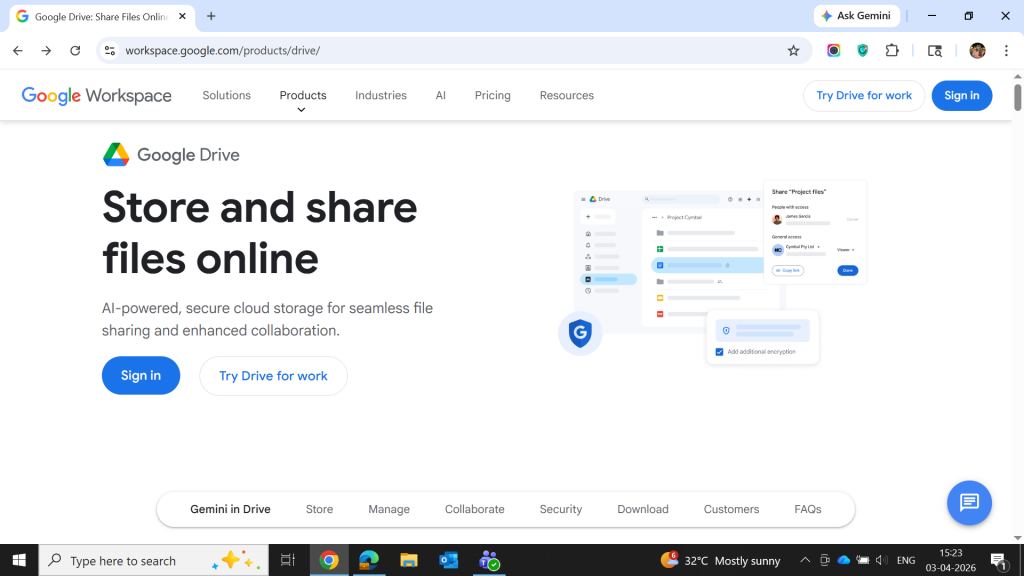
Google Drive interface displaying file storage, sharing options, and collaboration tools within Google Workspace

Google Drive is a cloud‑hosted file sync software that links your files between your computer, phone, and web browser while integrating tightly with Google Docs, Sheets, and Slides.

The platform keeps folders in sync across devices, lets you share links with others, and gives every user 15 GB of storage for free. This makes it a popular choice for free file sync for personal use and light collaboration.
googledrivelogo

Google Drive

4.5

Starting Price

$ 8.40      

Key Features of Google Drive:

  • Supports real‑time collaboration through Docs, Sheets, and Slides
  • Offers multi‑device file syncing across web, desktop, and mobile apps
  • Facilitates seamless integration with Google Workspace and third‑party apps
  • Provides cloud‑native storage with automatic version management
  • Supports offline access for selected files and folders
  • Offers powerful search functions using Google’s search technology
  • Provides secure file storage with encryption at rest and in transit
  • Supports file sharing with granular permissions for viewing, editing, and commenting
  • Offers Drive for desktop for streaming files without full downloads

Pro and cons of Google Drive:

Pros

  • Offers generous free storage of 15GB for all users
  • Supports easy access to files from any device with internet availability
  • Facilitates real‑time editing and teamwork for remote and collaborative environments
  • Provides strong built‑in security features including encryption options
  • Supports smooth integration with Gmail, Calendar, and other Google services
  • Offers excellent search performance for quickly locating stored content
  • Provides automatic backup capabilities that help prevent data loss

Cons

  • Supports daily upload limits that may restrict heavy users
  • Offers limited privacy
  • Facilitates data collection practices that may concern privacy‑focused users
  • Provides inconsistent syncing for certain file types at times
  • Supports file organization workflows that can feel messy for large teams
  • Offers offline access that may feel limited compared to competitors

Google Drive Pricing & Plans:

PlanPrice
StarterUSD 7/user/month
StandardUSD 14/user/month
PlusUSD 22/user/month
EnterprisePrice on request

2. OneDrive

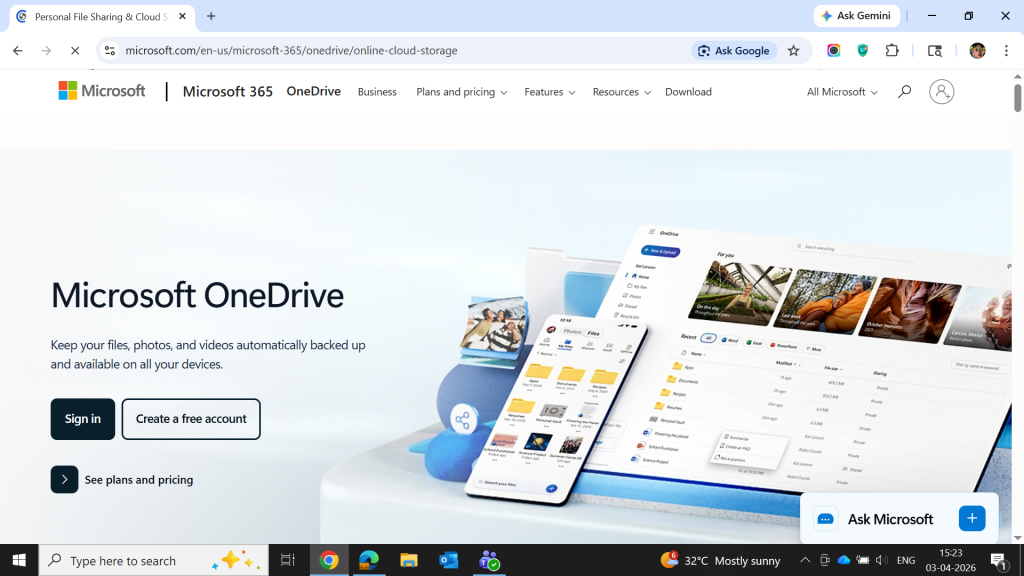
Microsoft OneDrive dashboard showing cloud storage, file organization, and cross-device file syncing features

OneDrive is Microsoft’s file sync program that ties into Windows, Microsoft 365, and the web. It keeps folders synced across devices, caches files on‑demand, and supports collaboration via Word, Excel, PowerPoint, and Teams.

Every Microsoft OneDrive account starts with some free storage, and paid plans bundle larger quotas with antivirus protection and ransomware recovery features.
MicrosoftOneDriveforBusinessMOLP

Microsoft OneDrive

4.6

Starting Price

$ 1.99      

Key Features of OneDrive:

  • Supports integration with Microsoft 365 apps
  • Offers syncing across Windows, Mac, Android, iOS, and web
  • Facilitates Files On‑Demand access without local storage
  • Provides a secure Personal Vault for sensitive files
  • Supports mobile scanning of documents and receipts
  • Offers file version history for quick recovery
  • Provides encryption and two‑factor authentication for security
  • Facilitates real‑time editing through Microsoft 365 tools
  • Supports automatic backup of Windows folders
  • Offers flexible sharing with custom link permissions

Pro and cons of OneDrive:

Pros

  • Offers strong integration with Windows and Microsoft 365
  • Supports reliable file syncing across devices
  • Facilitates smooth collaboration using Office apps
  • Offers great value when bundled with Microsoft 365
  • Provides secure storage with Personal Vault
  • Supports automated folder backup on Windows
  • Provides easy recovery with version history

Cons

  • Supports offline access, but reliability may vary
  • Offers no zero‑knowledge encryption for privacy
  • Facilitates a learning curve for non‑technical users
  • Provides occasional sync inconsistencies
  • Supports only 5 GB free storage, which feels limited
  • Offers a data policy that may concern privacy‑focused users

OneDrive Pricing & Plans:

PlanPrice
Individuals
Microsoft 365 FreeUSD 0 (5 GB)
Microsoft 365 BasicUSD 1.99/month (100 GB)
Microsoft 365 PersonalUSD 9.99/month (1 TB)
Microsoft 365 FamilyUSD 12.99/month (6 TB for up to 6 users)
Business
OneDrive for Business (Plan 1)USD 5/user/month
Microsoft 365 Business BasicUSD 6/user/month
Microsoft 365 Business StandardUSD 12.50/user/month

3. Dropbox

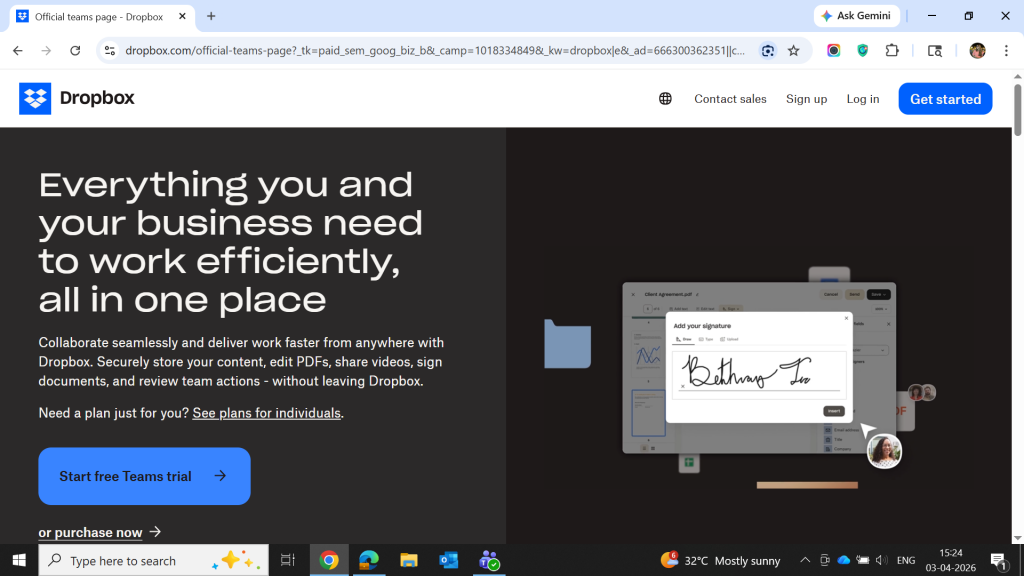
Dropbox Teams dashboard showing file collaboration, e-signature feature, and cloud storage interface for business users

Dropbox is one of the original file sync tool platforms, designed to keep folders in sync across desktops, laptops, and mobile devices. It focuses on simplicity, strong sharing tools, and app integrations (Slack, Zoom, Office, etc.).

Using it, users can access files from the web, install a desktop client, or use mobile apps while keeping a single source of truth. Dropbox offers a free file sync tier with limited storage and paid plans that scale for individuals and teams.

DropboxBusiness

Dropbox Business

4.4

Starting Price

$ 11.99      

Key Features of Dropbox:

  • Supports fast and reliable file syncing across devices
  • Offers cross‑platform access on Windows, macOS, Linux, Android, and iOS
  • Facilitates advanced file sharing with link permissions in paid plans
  • Provides Smart Sync to access files without storing them locally
  • Supports Dropbox Paper for simple collaborative documents
  • Offers version history for restoring older file versions
  • Provides integrations with many third‑party productivity apps
  • Facilitates secure sharing using 256‑bit AES and SSL/TLS encryption
  • Supports e‑signing via HelloSign on higher‑tier plans
  • Offers AI‑powered search and summaries through Dropbox AI

Pro and cons of Dropbox:

Pros

  • Offers reliable and fast syncing performance
  • Has an easy‑to‑use interface
  • Facilitates strong integrations with popular third‑party tools
  • Provides Smart Sync to save disk space
  • Offers excellent sharing controls for teams
  • Supports creative workflows with Paper, DocSend, and media‑friendly features

Cons

  • Supports only 2 GB free storage, which is very limited
  • Offers no zero‑knowledge encryption for privacy
  • Facilitates data sharing with third parties, which may concern privacy‑focused users
  • Provides fewer built‑in productivity tools compared to Google Drive
  • Supports higher pricing than many competitors
  • Offers limited free plan features and short version‑history windows on low tiers

Dropbox Pricing & Plans:

PlanPrice
BasicUSD 0 (2 GB)
PlusUSD 9.99/month (2 TB)
Professional/EssentialsUSD 16.58/month (3 TB)
Standard (Teams)USD 15/user/month (5 TB shared)
Advanced (Teams)USD 24/user/month (15 TB+)
EnterprisePrice on request

4. IDrive

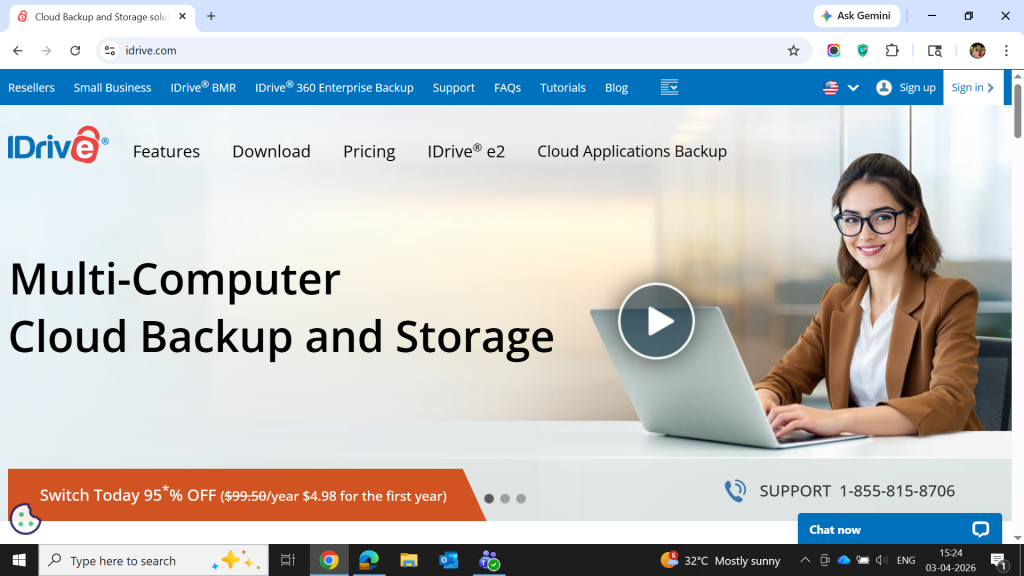
IDrive cloud backup software interface highlighting multi-device backup, storage features, and secure data protection

IDrive combines file synchronization software with extensive backup for multiple devices into a single account. It synchronizes folders between computers, phones, and cloud storage while also supporting full‑system and server backups, versioning, and hybrid storage options.

This makes it useful for people who want file sync utility that also double as backup tools, especially those with several devices or small business setups.

Key Features of IDrive:

  • Supports backups for unlimited devices under one account
  • Offers apps for Windows, macOS, Linux, Android, and iOS
  • Facilitates cloud backup combined with cloud storage functions
  • Provides optional end‑to‑end encryption with a private key
  • Supports versioning with up to 30 file snapshots
  • Offers IDrive Express for fast physical data backup and restore
  • Facilitates scheduled, continuous, and real‑time sync options
  • Provides backup for servers, NAS, and external drives
  • Supports backup for Workspace, Microsoft 365, Dropbox, and Box
  • Offers AES‑256 encryption with 2FA security

Pro and cons of IDrive:

Pros

  • Offers affordable plans with good value per terabyte
  • Supports strong backup tools and robust storage features
  • Facilitates reliable customer support for users
  • Provides easy setup with straightforward onboarding
  • Supports multi‑device protection across all major platforms

Cons

  • Supports slower transfer speeds compared to competitors
  • Facilitates restricted sharing when using private‑key encryption
  • Provides no unlimited storage on any plan
  • Supports occasional interface or sign‑in issues
  • Offers a desktop app that can run slower at times

IDrive Pricing & Plans:

PlanStarting Price
BasicFree
MiniUSD 2.95/year
PersonalUSD 69.65/year
TeamUSD 69.65/year
BusinessUSD 69.65/year

5. Sync.com

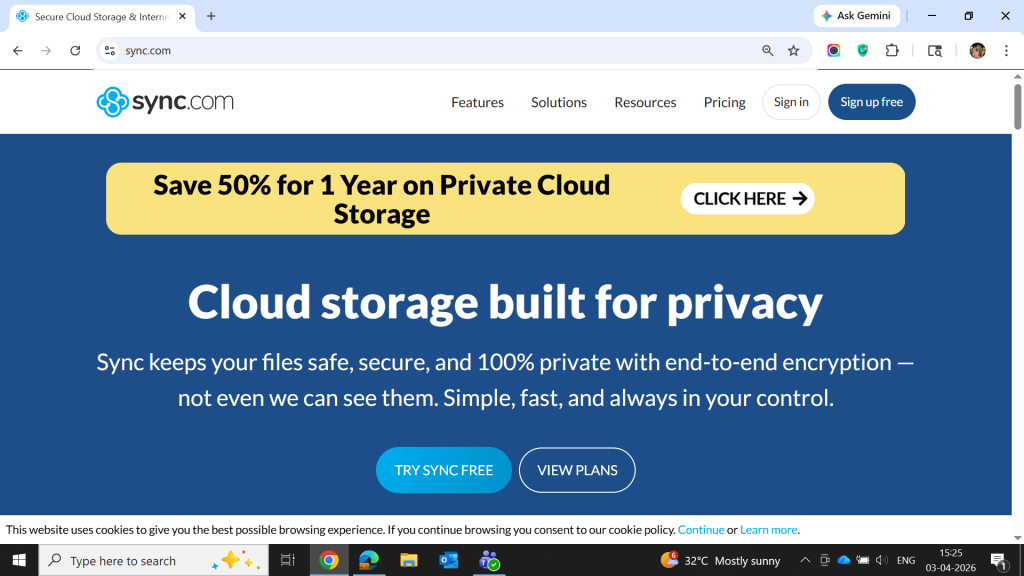
Sync.com cloud storage platform highlighting private file storage with end-to-end encryption and secure sharing

Sync is a privacy‑oriented file sync utility tool that uses end‑to‑end encryption, so files are encrypted on your device before they reach the servers. It keeps folders in sync across devices while offering zero‑knowledge storage, meaning Sync cannot see your data.

This makes it a popular choice for users who want strong security along with simple sharing and collaboration features. It competes with Dropbox and Google Drive but with a heavy emphasis on privacy.

Key Features of Sync.com:

  • Supports end‑to‑end zero‑knowledge encryption
  • Offers 5 GB free storage for new users
  • Facilitates unlimited file sizes and transfer bandwidth
  • Provides cross‑platform apps for Windows, macOS, Android, iOS, and web
  • Supports secure sharing with link controls and permissions
  • Offers long file versioning and recovery options
  • Provides a secure Vault for non‑synced storage
  • Supports compliance with HIPAA, GDPR, and PIPEDA
  • Offers Office 365 integration
  • Facilitates team collaboration with admin controls

Pro and cons of Sync.com:

Pros

  • Offers strong privacy
  • Supports unlimited storage on top‑tier plans
  • Provides good collaboration tools for teams
  • Offers generous storage on paid plans
  • Supports strict compliance standards
    Facilitates reliable syncing across devices

Cons

  • Offers no Linux desktop app
  • Provides slower upload speeds than competitors
  • Supports limited integrations with third‑party apps
  • Offers basic multimedia features only
  • Provides limited customer support on lower plans
  • Supports no monthly billing on some tiers

Sync.com Pricing & Plans:

PlanPrice
Basic 25 GBUSD 1/month
Personal 1 TBUSD 6/month
Pro Solo 5TBUSD 14/month
Pro Solo UnlimitedUSD 45/month
Pro Teams StandardUSD 3/user/month
Teams+ UnlimitedUSD 7.50/user/month
EnterprisePrice on request

6. Resilio Sync

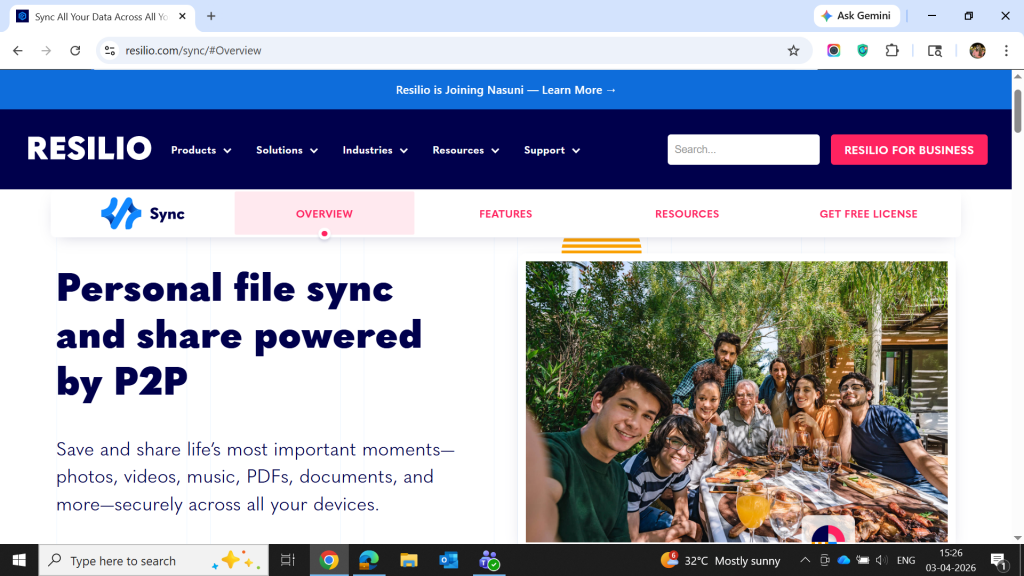
Resilio Sync interface showcasing peer-to-peer file synchronization and secure file sharing across devices

Resilio Sync is a file synchronization software that uses peer‑to‑peer (P2P) technology to move data directly between devices instead of only through a central server. It keeps folders in sync across computers, servers, and NAS devices while giving users control over who can access what. This makes it useful for people who want to move large media files quickly or need flexible on‑premise workflows.

Key Features of Resilio Sync:

  • Supports peer‑to‑peer file syncing without cloud servers
  • Offers direct device‑to‑device transfers for faster speeds
  • Provides unlimited file size handling for large media and datasets
  • Supports cross‑platform syncing on Windows, macOS, Linux, Android, iOS, and FreeBSD
  • Facilitates selective syncing and bandwidth control
  • Provides enhanced privacy by keeping data stored locally
  • Supports fast transfers using distributed peer‑to‑peer technology
  • Offers end‑to‑end encrypted transfers for secure sharing
  • Facilitates folder‑level permissions and access controls
  • Supports integration with system file explorers for drag‑and‑drop syncing

Pro and cons of Resilio Sync:

Pros

  • Offers fast syncing thanks to peer‑to‑peer transfers
  • Supports unlimited storage and file sizes
  • Provides strong privacy because files never touch cloud servers
  • Facilitates easy sharing of large media files
  • Supports multi‑platform environments including Linux

Cons

  • Provides no ability to share files without the recipient installing the app
  • Supports troubleshooting logs that can be difficult to read
  • Offers no cloud backup, meaning no online restore option
  • Facilitates occasional sync delays or inconsistencies for some users
  • Provides limited support response in complex cases
  • Supports no web‑based file browsing for some platforms

Resilio Sync Pricing & Plans: Price on request
7. Syncthing

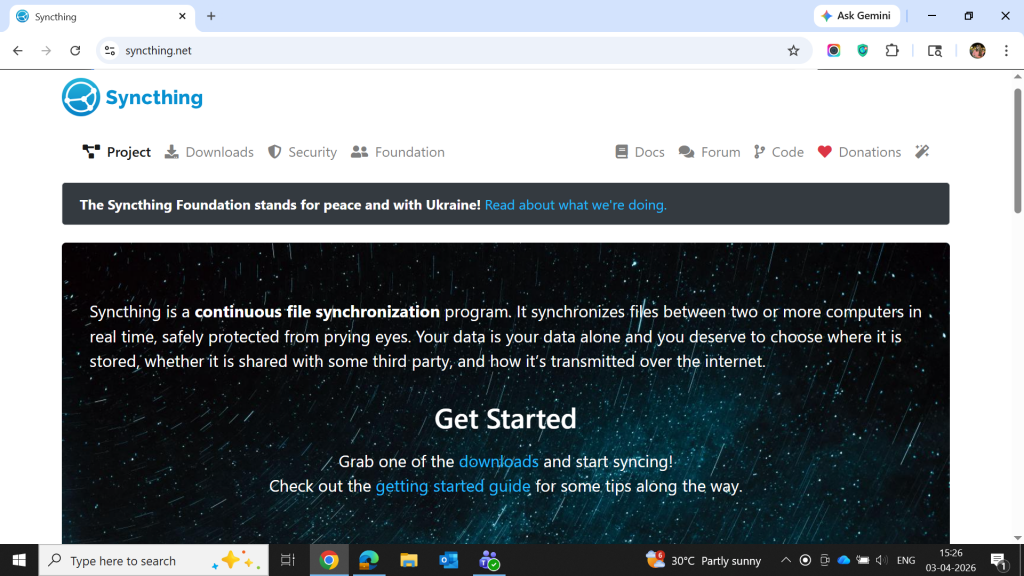
Syncthing file synchronization software interface displaying real-time syncing between multiple devices with privacy focus

Syncthing is an open‑source, free file synchronization software that synchronizes folders between devices using a secure, P2P protocol. It does not depend on a central cloud provider; instead, it runs on your own machines and transfers data directly between them. This makes it a good option for technically inclined users who want to have full control over their data, avoid third‑party clouds, or run private servers.

Key Features of Syncthing:

  • Supports real‑time syncing between devices
  • Offers fully decentralized, peer‑to‑peer syncing
  • Provides private syncing with no central servers
  • Supports encrypted communication using TLS
  • Offers device authentication through cryptographic certificates
  • Facilitates cross‑platform use on Windows, macOS, Linux, BSD, Solaris, and Android
  • Provides a browser‑based interface for configuration
  • Supports automatic device discovery on LAN and internet
  • Offers optional file versioning
  • Provides open‑source transparency and community development

Pro and cons of Syncthing:

Pros

  • Offers strong privacy because data stays only on your devices
  • Provides strong encryption and secure communication
  • Supports unlimited usage at no cost
  • Facilitates open‑source trust and auditability
  • Supports high‑speed local syncing over LAN
  • Offers broad OS compatibility for diverse setups

Cons

  • Supports a setup process that may feel complex for beginners
  • Offers no cloud access when devices are offline
  • Provides no official iOS app due to platform limits
  • Facilitates manual device approval and management
  • Offers no built‑in hosting or paid support tiers
  • Supports P2P sync that depends on devices being online

Syncthing Pricing & Plans: Syncthing is an open-source and free file sync software.

Conclusion

In the end, the best file synchronization software is the one that makes your digital life hassle free. All the options we explored here work differently. While some focus on smooth collaboration, others give you complete control with requiring cloud.

The important thing is finding the one that matches how you actually work. Let Techjockey be your guide in doing so!

Explore Topics

Consult with Our Techjockey Expert

Connect for fast and scalable software delivery, corporation plans, advanced security, and much more.

Talk To Tech Expert