GoodNotes VS Samsung Notes: Which Note-Taking Software Is Right For You?
The right note-taking software can make studying, work planning, and daily tasks much simpler. GoodNotes and Samsung Notes both help users capture ideas quickly and stay organized without confusion. Students, professionals, and regular users depend on these apps to manage notes smoothly and save time.
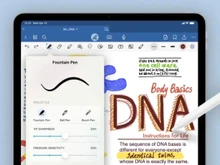
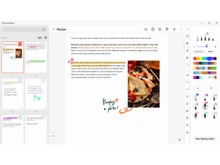
GoodNotes focuses on delivering a natural writing experience with clean handwriting, well-organized notebooks, and powerful study and annotation tools. It is often chosen by students, teachers, and iPad users who want a smooth and structured digital notebook.
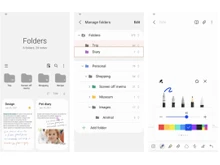
Samsung Notes offers a simple, powerful note-taking experience built directly into Samsung devices, with excellent S Pen support and easy syncing across phones, tablets, and computers. It is ideal for users who want quick access and device-level convenience.
This guide explains how GoodNotes and Samsung Notes compare in features, pricing, usability, device support, and overall value so you can choose the best option for your needs.
Key Differences Between GoodNotes vs Samsung Notes
- Writing Experience and Tools: GoodNotes offers a more natural writing feel with advanced pen tools and structured notebooks, making it better for detailed study notes and long-form writing.
- Device Compatibility: GoodNotes mainly works on iPad, iPhone, and Windows, while Samsung Notes is designed for Samsung phones, tablets, and PCs with strong support for S Pen.
- Organization and Flexibility: GoodNotes provides rich notebook management with folders, templates, and search tools, while Samsung Notes focuses on quick note capture, simple folders, and faster syncing across Samsung devices.
Comparison Table: GoodNotes vs Samsung Notes
| Feature |
GoodNotes |
Samsung Notes |
| Search Function |
Strong search that quickly finds handwritten content. |
Quick search across simple text and mixed notes. |
| Template Variety |
Many templates for planning, studying, and creative work. |
Basic templates designed for general, everyday note-taking. |
| Collaboration |
Shares notebooks for comments and cooperative teamwork. |
Shares notes through Samsung accounts for simple collaboration. |
| Backup Options |
Multiple backup settings ensure long-term data safety. |
Automatic cloud backup provides fast multi-device access. |
| PDF Handling |
Smooth PDF markup suitable for detailed study annotations. |
Basic PDF tools are mainly for simple highlighting needs. |
| Multimedia Notes |
Adds stickers, drawings, images, and linked resources easily. |
Adds voice clips, drawings, and images inside notes. |
| File Export |
Exports PDFs, images, and editable GoodNotes files. |
Exports PDFs, images, and Samsung-supported note formats. |
| Customization |
Offers many page styles and flexible writing tool choices. |
Provides basic customization suited for quick note-taking. |
| Pricing |
Starts at USD 120 per year |
Free to use. |
| Best For |
Students and creators need structured digital notebooks. |
Samsung users want simple, fast, synced note-taking. |
Detailed Feature Comparison of GoodNotes vs Samsung Notes
GoodNotes offers simple text formatting, mainly focused on typed notes placed anywhere on the page. It supports basic adjustments like font size, color, and alignment, which work well for organized note structures. Samsung Notes provides more advanced formatting with richer text controls, making it better for users who mix handwriting with detailed typed paragraphs and prefer stronger text editing flexibility.
GoodNotes works fully offline, allowing users to write, read, organize, and annotate notes without depending on an internet connection. This is useful for classrooms, travel, or remote study sessions. Samsung Notes also offers complete offline access, letting users create or view notes anytime. Once back online, everything syncs automatically across Samsung devices, ensuring convenience without losing access when network availability is limited.
GoodNotes includes version history features where users can revert to previous versions of their notebooks, especially useful for long study materials or major edits. Samsung Notes offers a simpler version recovery for recently edited notes, helping users undo mistakes or restore earlier drafts. Both apps offer helpful restoration tools, but GoodNotes provides a deeper notebook-level history system.
GoodNotes allows users to save web content by capturing screenshots or importing files manually. Although not a built-in clipper, it supports the organized placement of clipped content. Samsung Notes includes a more direct web clipper through Samsung Internet browser integration, allowing instant saving of webpages, images, and selected text into notes. This makes Samsung Notes more convenient for web-based research.
GoodNotes supports checkboxes within pages, allowing users to create simple task lists that fit within handwritten or typed content. Although effective, it does not include dedicated list automation. Samsung Notes provides stronger to-do list support with interactive checklists, color labels, and the option to link tasks with reminders. This makes Samsung Notes more convenient for daily task management.
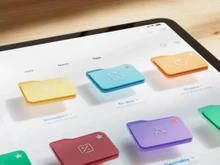
GoodNotes offers a clear notebook and folder structure that supports deep organization for students, creators, and professionals working with large volumes of notes. Its multi-level folder system makes sorting easier. Samsung Notes uses a simpler folder layout, focusing more on quick access and lighter organization. It suits users who want faster navigation instead of complex structural management.
- Tagging and Labelling GoodNotes
lets users add keywords as tags to notebook pages, making it easier to find related topics. These tags help categorize study chapters or project sections. Samsung Notes includes labels that sync across devices, offering quick filtering and grouping options. This feature is especially helpful for users managing mixed content like voice notes, images, and handwritten pages.
- Annotations
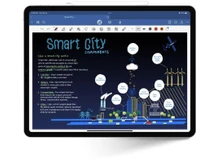
GoodNotes provides advanced annotation tools designed for detailed study work, including pens, highlighters, shapes, and precision editing. It is ideal for marking PDFs, assignments, or research papers. Samsung Notes offers simpler annotation tools suitable for highlighting or quick drawing on imported files. It works best for light markup rather than deep academic or professional document review.
When To Choose GoodNotes vs Samsung Notes?
| Use Case |
Choose GoodNotes If |
Choose Samsung Notes If |
| Heavy Reading |
You need organized notebooks for long study or research. |
You prefer quick notes for short study sessions. |
| Creative Work |
You want detailed sketching and flexible page layouts. |
You need simple drawing tools for fast ideas. |
| Document Handling |
You often work with imported PDFs and big files. |
You attach quick images or voice clips regularly. |
| Long Projects |
You build structured notebooks that grow over time. |
You manage simple notes for short-term tasks. |
| Cross Device Use |
You switch between iPad, iPhone, and Windows. |
You stay within Samsung phones, tablets, and PCs. |
| Precision Writing |
You need advanced pen tools for clean handwriting. |
You rely on the S Pen for fast daily writing. |
| Organized Planning |
You want detailed layouts for planning and journaling. |
You prefer quick lists and fast everyday notes. |
Final Verdict: GoodNotes or Samsung Notes?
GoodNotes is best suited for users who prefer detailed digital notebooks, organized study materials, and a focused handwriting experience. It works well for long-term projects, structured planning, and academic or creative work where layout flexibility and precision writing tools matter the most.
Samsung Notes is more convenient for users who want fast, everyday note-taking, simple organization, and seamless syncing across Samsung devices. It is especially helpful for quick ideas, voice notes, reminders, and on-the-go use without needing advanced setup.
Both apps serve different needs. Choose GoodNotes if you want depth, structure, and a dedicated workspace for writing. Choose Samsung Notes if you want speed, convenience, and effortless use across your Galaxy ecosystem.
If you still feel unsure, you can explore both apps briefly and see which matches your note-taking style more naturally. Also, reach out to our software experts or the Techjockey Team for a free consultation and demo.
 UAE
UAE India
India


 Comparison


 17 Ratings & 13 Reviews


 Free Trial




 Get directly in your email inbox on your Whatsapp


