USA
USA India
IndiaSmall Business
Designed for startups and growing businesses


See More


Brand: AnyViewer
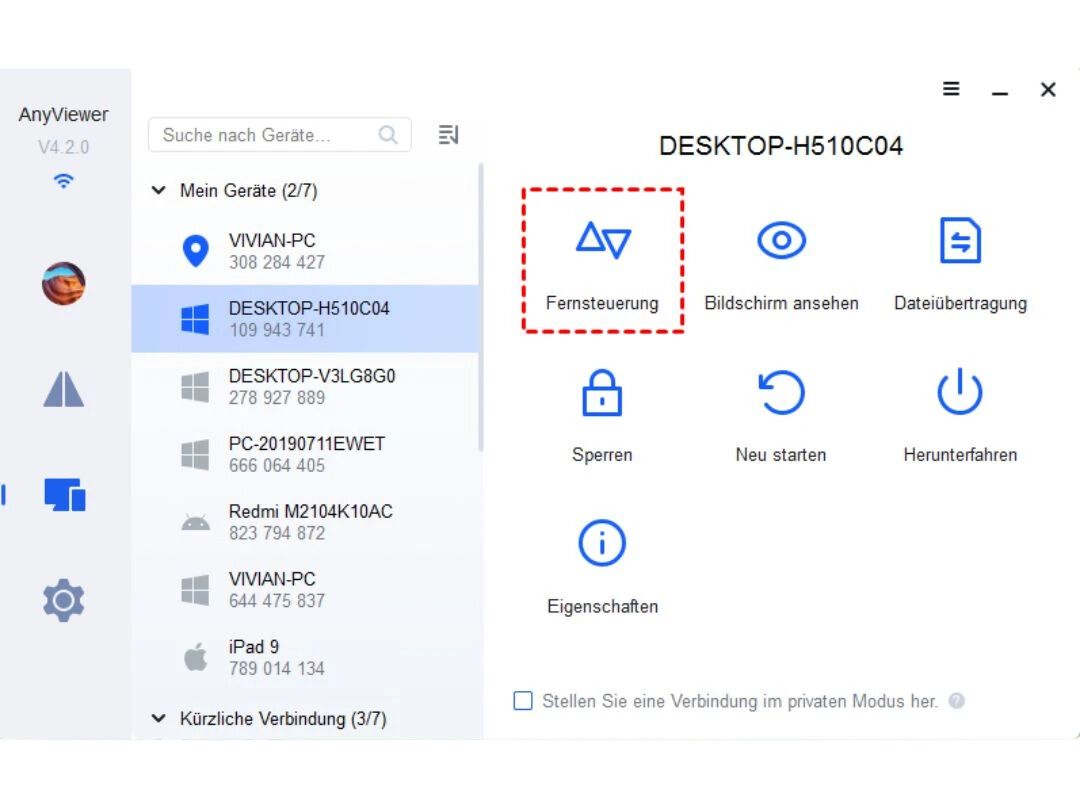
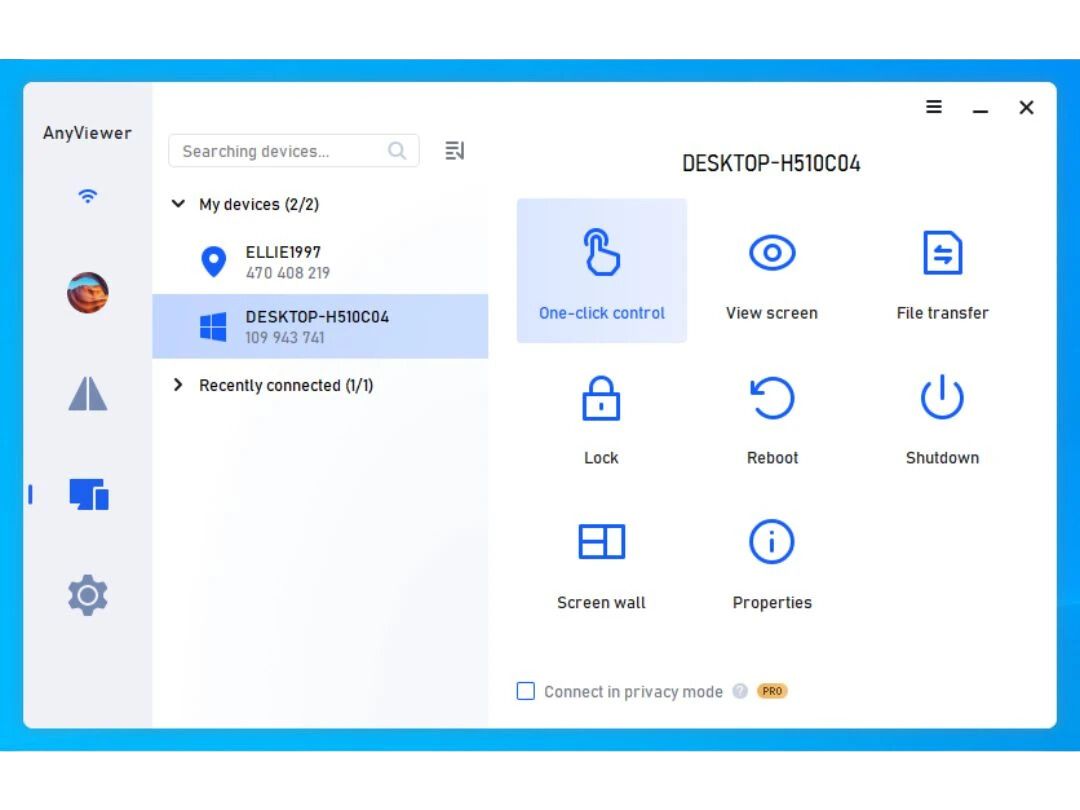
AnyViewer is a remote desktop software that lets you access and control your computer from anywhere using a Windows, iPhone, or Android device. It's easy to use, with a simple interface, and offers fast, secure connections with high-quality images and low lag. You can transfer files, provide remote tech support, or even play games on a remote PC. It uses strong encryption to keep your data safe a...
See MoreHave you used AnyViewer before?
Share your insights for better experience
Connection & Accessibility
 Cross-Platform Compatibility Mobile Access Support Multi-Window Control Persistent Session Multi-Monitor Navigation Unattended Access Remote printing Browser-Based Access Clipboard Syncing
 Session Management & Control
Multi Session Support Session Timeout & Auto-Lock Remote Reboot Options Blank Screen Mode Session Handover Queue & Schedule Sessions Real-Time Control Customization Session Recording & Playback System Management & Support
Two-Way File Transfer Bulk File Transfer Direct File Access Permissions Remote Task Manager System Health Monitoring Automated System Diagnostics Remote Command Prompt Access Session Note Taking File Sync & Auto Update Collaboration & Communication
In-Session Chat Screen Sharing with Control User Grouping & Management Video Conferencing Annotation & Drawing Tools Multiple Technician Access Shared Toolbox Two-Way Desktop Sharing Security & Compliance
End-to-End Encryption Role-Based Access Control (RBAC) Multi-Factor Authentication (MFA) Audit Logs HIPAA Compliance Dynamic IP Whitelisting GDPR/CCPA Compliance Customization & Personalization
Customizable Branding Customizable Toolbars Flexible UI Layout Session Scripting Custom Keyboard Mapping Language Localization Automation & Workflow
Scheduled Tasks Remote Wake-on-LAN Workflow Automation Task Automation Analytics & Reporting
Performance Metrics Customizable dashboards Detailed Session Reports User Activity Reports Error Logs Integrations
Ticket Management API Integration Patch Management Third Party Integration Administrative Features
Access Logs Admin Console Device Management Patch Management Centralized Connection Management User Access Management 

Watch the demo video to explore key features, real workflows, and how the software fits your business needs.
 Ubuntu
  Windows
  iOS
iOS  Android MacOS
  Linux
Linux  Desktop
  Mobile
  Tablet
  iPad
iPad  Cloud-Based
  Perpetual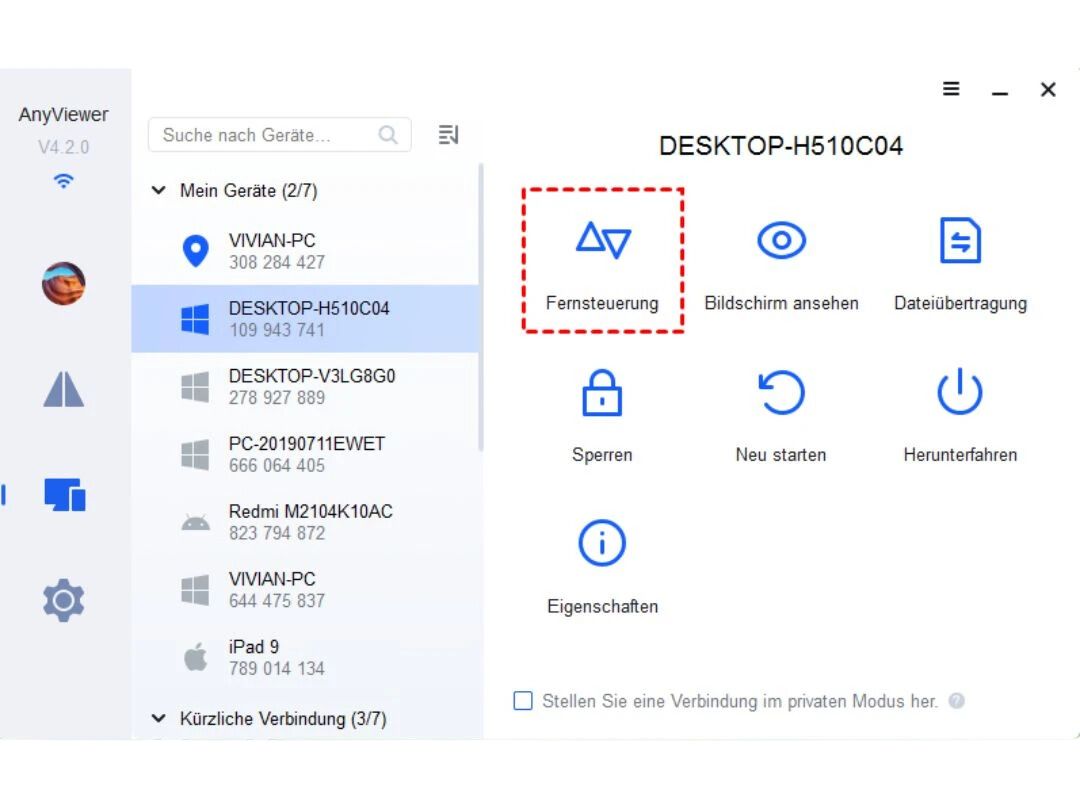
Small Business
Designed for startups and growing businesses
Medium Business
Built for business growth and flexibility
Enterprises
Designed for complex and large-scale business needs
3.9
Out of 5

Overall Rating
Based on
3 Verified Ratings
Rating Breakdown
90% Recommend this Product
Add ReviewTechjockey Trusted Reviews from Verified Users
No reviews are currently available for AnyViewer. Discover similar Remote Desktop Software reviews

AnyDesk
Whats great - Lightning-fast remote desktop connections, allowing you to access your computer from anywhere with minimal delay. read more
TeamViewer
Whats great - It is extremely easy to use and fast. It allows connecting to a computer from any device with a simple ID and password. It in... read more

Parsec
Whats great - Lightweight, runs smoothly even on weak devices. read more

AnyViewer
$ 42.96 excl. GST
Desktop
Mobile
Web based
On Premises
Windows
Mac OS
AnyDesk
Price On Request
Desktop
Mobile
Web based
On Premises
Windows
Mac OS

UltraViewer
Price On Request
Desktop
Mobile
Web based
On Premises
Windows
Mac OS
TeamViewer
Price On Request
Desktop
Mobile
Web based
On Premises
Windows
Mac OS

Apple Remote Desktop
Price On Request
Desktop
Mobile
Web based
On Premises
Windows
Mac OS

RustDesk
Price On Request
Desktop
Mobile
Web based
On Premises
Windows
Mac OS
TSPlus
Price On Request
Desktop
Mobile
Web based
On Premises
Windows
Mac OS

Duet Display
Price On Request
Desktop
Mobile
Web based
On Premises
Windows
Mac OS
Iperius Remote
Price On Request
Desktop
Mobile
Web based
On Premises
Windows
Mac OS
Parsec
Price On Request
Desktop
Mobile
Web based
On Premises
Windows
Mac OS

Microsoft Remote Desktop
Price On Request
Desktop
Mobile
Web based
On Premises
Windows
Mac OS
(0) Product(s) selected
Starting Price:
$19.90 /Year
Starting Price:
$298.80 /User/Year
Starting Price:
$79.99 /Licenses
Starting Price:
$9.90 /Month
Starting Price:
$180.00 /Year
Starting Price:
€8.39 /Month
Starting Price:
$9.99 /User/Month

Starting Price:
$60.00 /Month
Starting Price:
$4.00 /Month
Starting Price:
€33.00 /Quarter
Available
Price on Request
Yes, anyone can consider AnyViewer safe if proper measures are taken to secure it. It takes tight security coverage with policies such as end-to-end encryption, in which all the remote sessions are highly secured, and no unauthorized access can be able to breach into the sessions. Moreover, AnyViewer incorporates the use of multi-layered user access management and security policies and mechanisms, which even go further to protect sessions with passwords, thus making it convenient for both individual and commercial use.
The requirements for AnyViewer are quite low hence making it usable even on other electronic devices. Operating System: Windows version 7 and later, macOS, and Linux for computer; mobile version operating systems are iOS and Android. Internet Connection: This is necessary for any remote access to be achieved Hardware: Basic requirements comprise a present-day CPU, 2GB, and enough memory for the installation of the AnyViewer application.
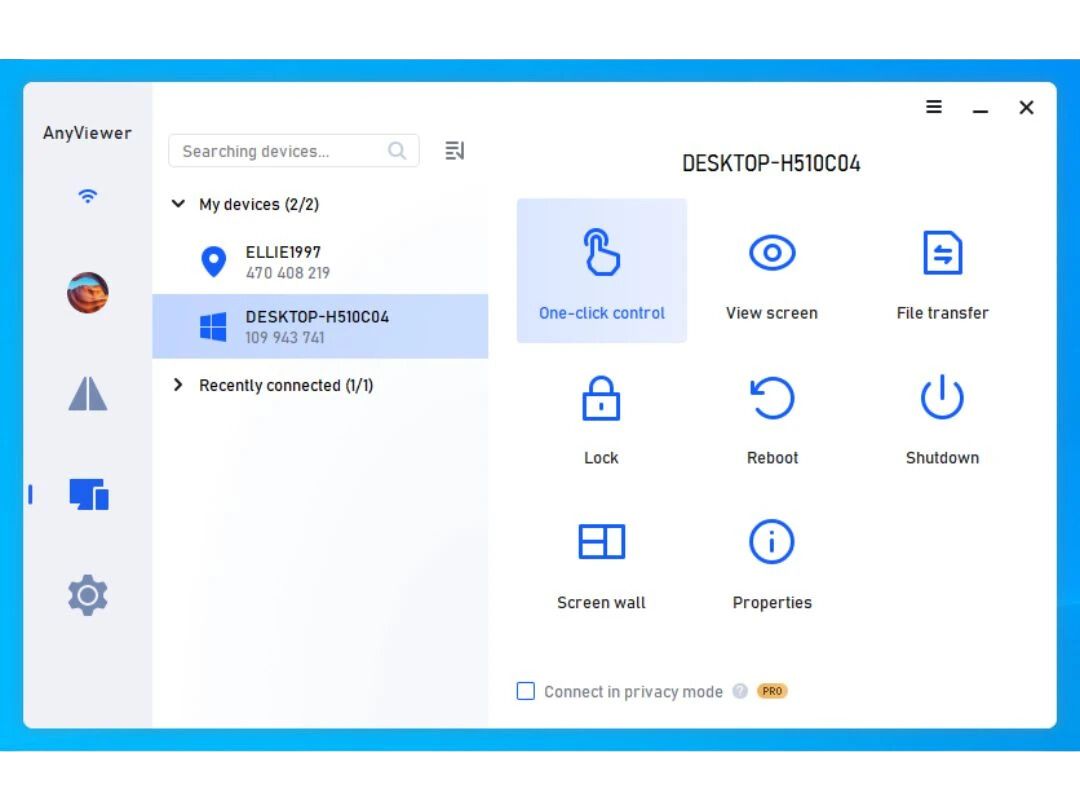
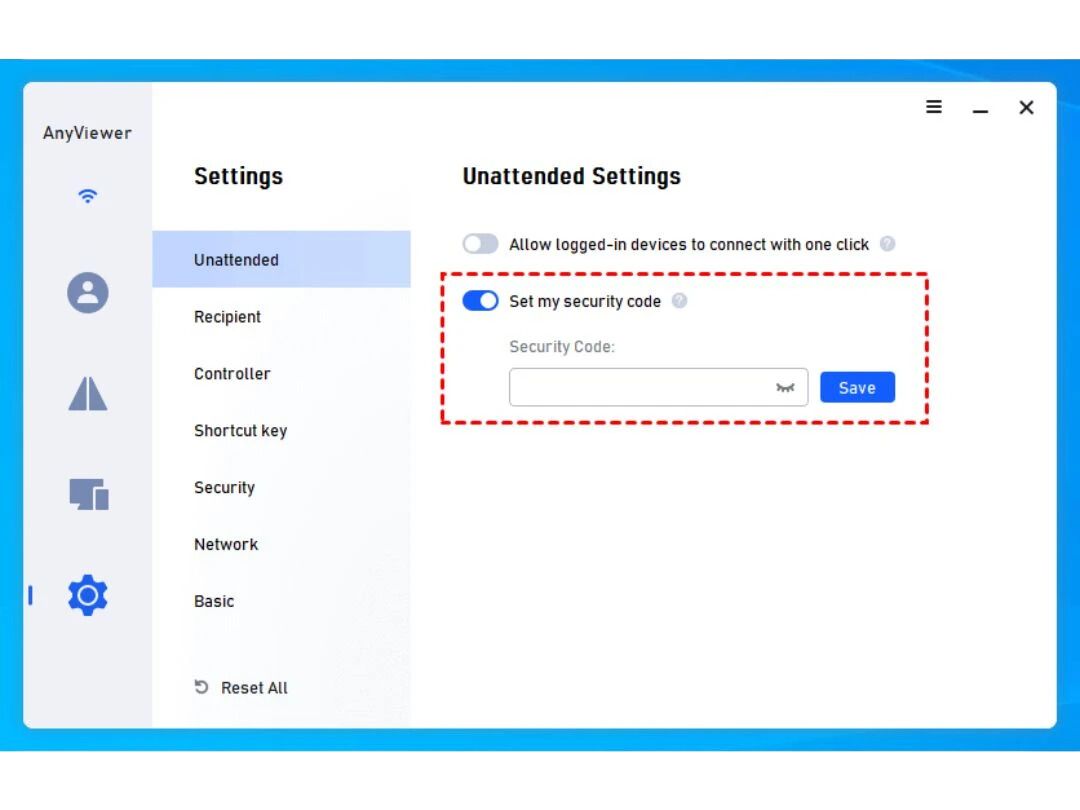
In order to connect over AnyViewer, install the AnyViewer application on the local device and the remote device. Log into your account or create an AnyViewer new account. To the remote add the device input and insert the device's unique ID. Ask the remote device for instant access or unattended access if already set up. After access is granted for the remote computer, the transference of control back to the local computer can be performed.
To put it simply, it lets users view the desktop of another device and control it connected over the network and equipped supporting devices. Once AnyViewer is installed on both local and remote devices, AnyViewer connects to the internet. AnyViewer helps users manage remote desktops, copying files, and assist in IT support in real-time. Access without the user and encryption are provided to allow for effective functioning without any security issues.
AnyViewer helps users access and control any computer remotely over the internet. One can connect to a desktop and manage their systems while performing some tasks or functions. It allows transferring of files from the local device to the remote device and vice versa. It allows one to access a computer remotely without attending to it.
To use AnyViewer on Android, the Android user is supposed to: Go to the Google Play Store and download the AnyViewer app. After installing the app, the user is required to log in with their details or create an AnyViewer account if they do not have one. To facilitate remote access, the user must provide the device ID of the computer to be added. Attempt to get authorization for the use of the connected remote computer. If you are already connected to the remote computer, you can re-control its desktop, send or receive files or do any other activity with your Android device.
To transmit files in AnyViewer: Begin a remote connection between your local device and the remote device. During the session, look for the File Transfer option in the control interface. Choose one of the devices and the files that you wish to upload. Indicate which folder on the receiving device will contain the uploaded content. Press the Send button in order to finalize sending the files.
The answer is yes. The free version of AnyViewer is available. Basic remote desktop access and file transferring capabilities are provided with the AnyViewer Free version making it ideal for personal users with minimal requirements. However, resource management across devices and access to the resources without any user interaction comes with the pro version which the subscription is paid.
It depends on the selected plan what the AnyViewer costs. Free version of any viewer is provided with the basic features. For enhanced functionality, AnyViewer Pro plan is priced at approximately USD 3.58 each month. AnyViewer cost structure has both monthly and yearly subscription plans within which the yearly plan is more economical.
Terms and Condtions

Users with registered businesses can purchase goods from merchants on the platform to satisfy their business needs. Users are not permitted to utilize any products acquired through the platform for resale, advertising, business, or further distribution.
For each purchase made, users will receive a Tax Invoice (or 'GST invoice') that includes specific details such as:
the GSTIN of the user associated with their registered business, and
the specified Entity Name for their business.
It should be noted that not all products are eligible for GST Invoice. Only the products displayed by participating sellers with the 'GST-based Invoice Available' callout on the product description page would qualify.
Certain goods and services are not eligible to get a GST Invoice, including items with VAS, i.e., Value Added Services (e.g., Total Mobile Protection/Assured Buyback) and those involving an exchange offer at the time of purchase.
Users must ensure the accuracy of the GSTIN, and business entity name provided for the GST Invoice. Requests for corrections into GST Invoice would not be accommodated by Techjockey.com or any Seller, and any issues arising from user-provided information are the sole responsibility of users.
Techjockey.com is not liable for the GST Invoice or any associated input tax credit. To efficiently claim an input tax credit, users should select the registered place of business address as per the GST authority's data and follow the provisions of the GST Act and rules.
To claim an input tax credit, the delivery and billing addresses must match. Furthermore, input tax credits will not be granted if the delivery address and GSTIN on the invoice are from different states. In case of incorrect GST details provided during the order placement, the order will be canceled automatically.
 20,000+ Software Listed
 Unbiased Comparison
 Read Authentic Reviews
 500,000+ Monthly Users