linkedin
Zoho Assist logo
play Zoho Suppor demo
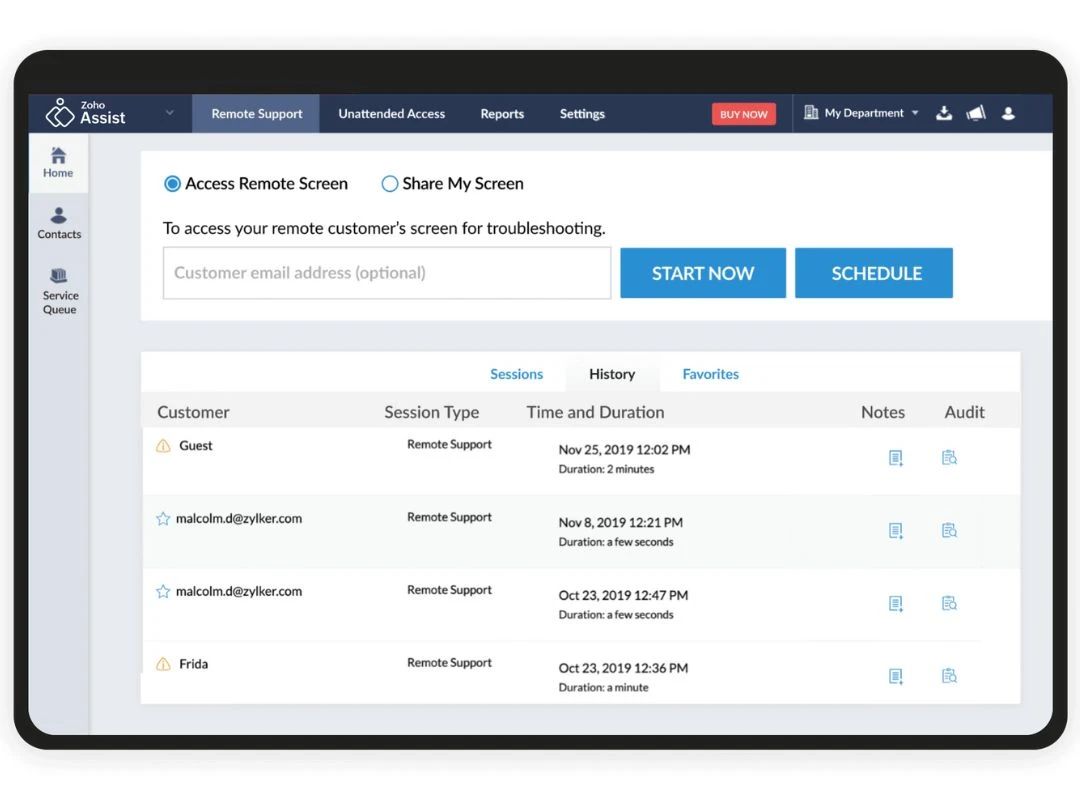
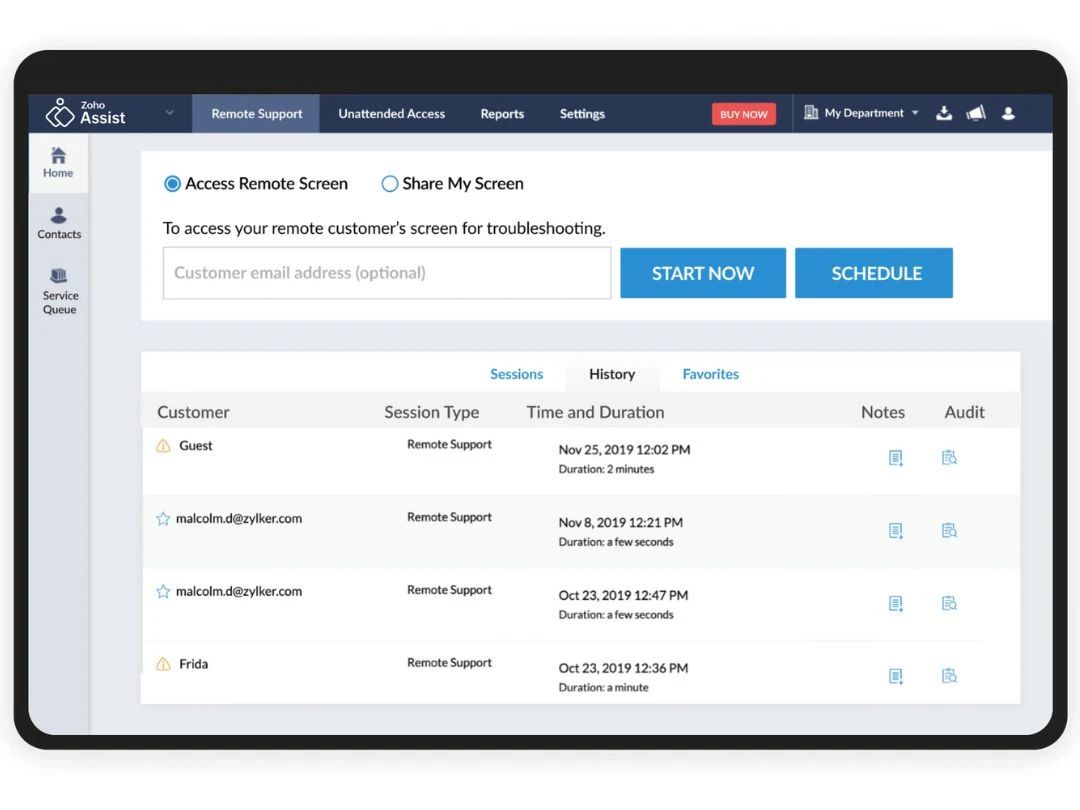
Zoho Assist remote
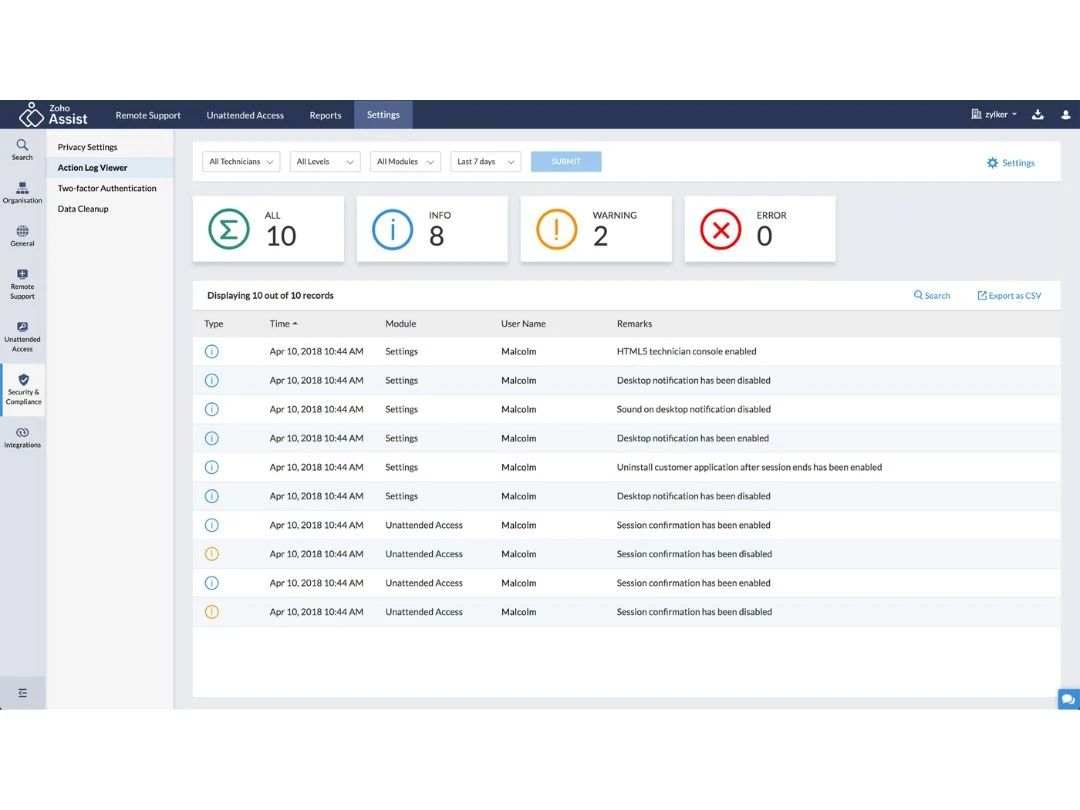
Zoho Assist settings

Zoho Assist

Brand: Zoho Corporation

  • 4.1

  • 6 Ratings

Zoho Assist is a web-based remote support tool that enables businesses to access and control devices remotely, transfer files securely, schedule sessions, and offer multi-monitor support—making it ideal for IT teams, support technicians, and remote work setups.

See More

Have you used Zoho Assist before?

Share your insights for better experience

Add a Review
Starting Price
AED44

View plans

100% Genuine
Products
Best Price
Guaranteed
Safe & Secure
Payment
  • Description

  • Pricing

  • Features

  • Specification

  • Review

  • Compare

  • Alternatives

  • FAQ

Starting at AED44.00

Zoho Assist Software Overview

What is Zoho Assist?

Zoho Assist is a web-based remote support solution with which businesses can provide on-demand support to their remote clients as per their needs and requirements. Users can set up unattended remote access in a hassle-free manner and manage clients’ laptops, PCs, servers, and mobile devices with ease. It just takes a few seconds to establish safe connectivity, thus speeding up the time and efficiency of the service.

Further, Zoho Assist also allows its users to transfer files to the client’s computer during live sessions. It offers the highest security level, and all the transfers are encrypted with SSL 256-bit AES encryption.

Features

  • Remote Printing: Print files from the remote computer to your local printer without sending the file.
  • Unattended Access: Access and control a device even when no one is there to accept the session.
  • Multi-Session Support: Work on more than one remote session at the same time without logging out.
  • Session Handover: Pass the session to another tech without stopping the support.
  • Two-Way File Transfer: Send and receive files during a session between both devices easily.
  • Bulk File Transfer: Move many files at once to save time during remote support.
  • In-Session Chat: Talk with the person you're helping through chat during the session.
  • Annotation & Drawing Tools: Use drawing tools on the screen to point things out or guide someone.

Why Choose Zoho Remote Desktop?

Zoho Remote Desktop helps with remote and multi-monitor support and file transfer. It offers the following features that make the software an ideal choice for users:

  • On-Demand Remote Support: With Zoho Assist, you can provide remote support to your employees and clients by accessing their laptops. This kind of support is essentially useful for customer support technicians or IT departments.
  • Multiple Monitor Support: You can access multiple monitors at the same time, thereby helping with increased productivity. Additionally, Zoho Assist's multi-monitor navigation feature allows users to switch between different monitors on remote desktops.
  • File Transfer: In a remote support session, actions such as patch updates, software installations, etc., take place that require file transfers. Zoho remote access comes with an inbuilt feature to transport files to remote systems without using cloud-based storage devices or USB. The transfer is completely secure with 256-bit AES encryption.
  • Scheduled Sessions: With the Zoho Assist app, users can pre-schedule a support session at the time their client prefers. It sends timely reminders to its users and their clients. Further, users can cancel or reschedule their sessions in case of any last-minute changes.
  • Browser-based Console: Zoho Remote Assist comes with a browser-based console to perform a wide range of functions like transferring files between technicians and customers, chatting and switching between monitors, and many more.
  • Instant Chat: The built-in voice, text, and video chat service offered by the Zoho Assist customer app enables its users and their clients to stay connected with each other during a remote session. They no longer have to rely on any third-party chat window for communication.
  • Multi-monitor Navigation: With the multi-monitor navigation module of the Zoho remote desktop, users can easily move from one monitor to another with just a click. Thus, boosting their productivity level as a whole.
  • Device Compatibility: Zoho Assist supports both desktop and mobile versions and is available on all platforms—Windows, iOS, macOS, and Android.

Compatible Platforms for Zoho Assist

Zoho Assist supports both desktops and mobile versions and is available on all platforms—Windows, iOS, macOS, and Android.

Pricing of Zoho Assist in UAE

The Zoho Assist price starts at AED 44.00 at Techjockey.

The pricing model is based on different parameters, including extra features, deployment type, and the total number of users. For further queries related to the product, you can contact our product team and learn more about the pricing and offers.

Read more

Zoho Corporation Company Details

Founded Year:  1996

Zoho Corporation, is an Indian multinational company that specialises in software development, cloud computing, and web-based business tools. It is best known for Zoho Office suite.

Director/Founders Sridhar Vembu / Tony Thomas
Company Size 1000+ Employees

Zoho Assist Pricing & Plans

Remote Support Standard (1 technician)
Starting at AED44
    • Licenses

      Licenses
      Licenses
    • Monthly

      Monthly
      Monthly

Key Features

  • 1 technician

  • File Transfer

  • Multi-Monitor Navigation

  • Reboot and Reconnect

  • Session Transfer

  • Import Google Contacts

  • Custom Report

Unattended Access Standard (Unlimited technicians)
Starting at AED44
    • Monthly

      Monthly
      Monthly
    • Licenses

      Licenses
      Licenses

Key Features

  • 25 unattended computers

  • Computer Grouping

  • Group permissions

  • Bulk Deployment

  • Wake on LAN

  • File Transfer

  • Remote Power Options

Unattended Access Professional (Unlimited technicians)
Starting at AED66
    • Licenses

      Licenses
      Licenses
    • Monthly

      Monthly
      Monthly

Key Features

  • 25 unattended computers

  • Session Recording

  • Remote Print

  • Remote Script Execution

  • Annotation

  • Diagnostic Tools

  • Video Chat

Zoho Assist Features

Connection & Accessibility

  • icon_check Remote printing
    Print files from a remote device to a local printer instantly.
  • icon_check Unattended Access
    Securely access devices without user intervention for maintenance or updates.
  • icon_check Cross-Platform Compatibility
    Seamless access across Windows, macOS, Linux, iOS, and Android devices.
  • icon_check Browser-Based Access
    Use remote desktop features directly via a web browser without additional software.
  • icon_check Mobile Access Support
    Remotely control systems using smartphones or tablets anytime, anywhere.
  • icon_check Multi-Window Control
    Manage multiple application windows on the remote device in one session.
  • icon_check Persistent Session
    Automatically reconnect to maintain active sessions during interruptions.
  • icon_check Clipboard Syncing
    Copy and paste text or files between local and remote devices seamlessly.
  • icon_check Multi-Monitor Navigation
    View and control multiple monitors on the remote system efficiently.

Session Management & Control

  • icon_check Multi Session Support
    Handle multiple remote sessions simultaneously with ease.
  • icon_check Session Handover
    Transfer active sessions to another technician without disruptions.
  • icon_check Queue & Schedule Sessions
    Organize and schedule remote sessions for efficient workflow.
  • icon_check Session Timeout & Auto-Lock
    Automatically end or lock sessions after a period of inactivity.
  • icon_check Real-Time Control Customization
    Adjust settings like resolution and bandwidth during sessions.
  • icon_check Remote Reboot Options
    Reboot devices remotely, including into Safe Mode if needed.
  • icon_check Blank Screen Mode
    Blackout the remote screen to ensure privacy during access.
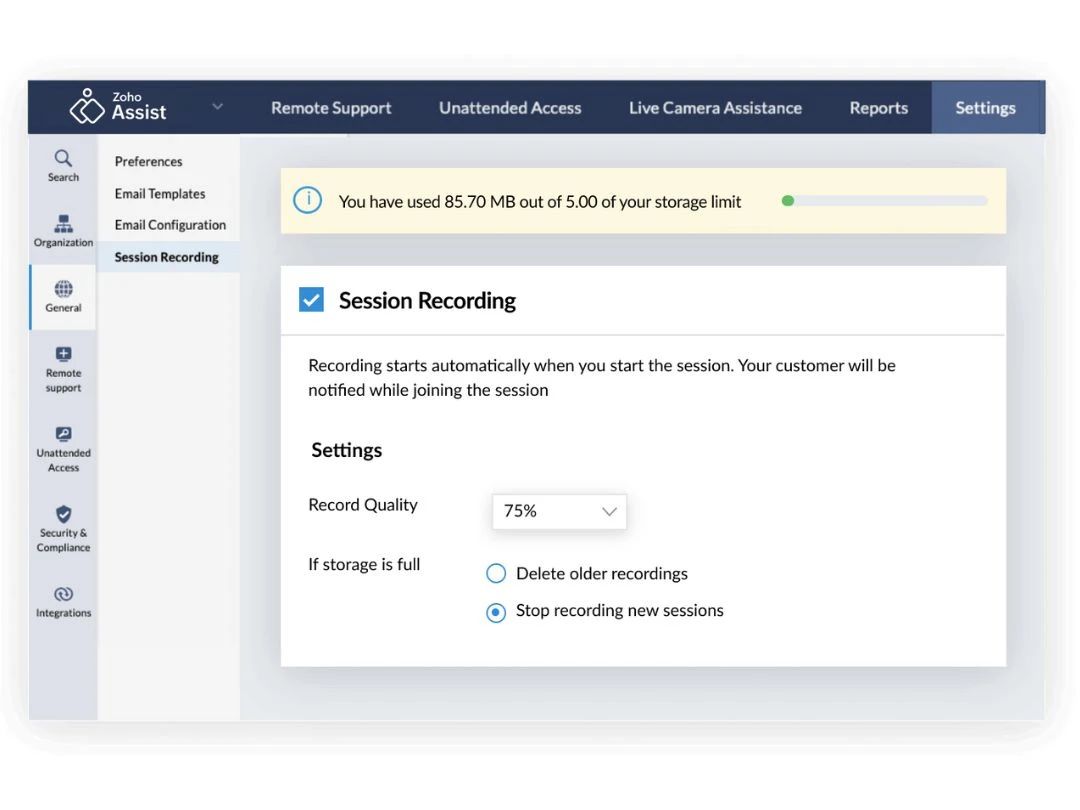
  • icon_check Session Recording & Playback
    Record sessions for review, training, or compliance purposes.

System Management & Support

  • icon_check Two-Way File Transfer
    Send and receive files securely between local and remote devices.
  • icon_check Bulk File Transfer
    Transfer multiple files or folders in a single operation.
  • icon_check System Health Monitoring
    Track CPU, memory, and disk usage in real-time during sessions.
  • icon_check Automated System Diagnostics
    Run diagnostics to identify and resolve issues remotely.
  • icon_check Remote Command Prompt Access
    Access and execute commands in the terminal remotely.
  • icon_check Session Note Taking
    Record notes during sessions for follow-ups or documentation.
  • icon_check Direct File Access Permissions
    Control access to specific files during remote sessions.
  • icon_check Remote Task Manager
    Manage processes and applications on the remote device effectively.
  • icon_check File Sync & Auto Update
    Synchronize and update files automatically across devices.

Collaboration & Communication

  • icon_check In-Session Chat
    Communicate with users during remote sessions via real-time chat.
  • icon_check Annotation & Drawing Tools
    Highlight or annotate on the screen to guide users effectively.
  • icon_check Screen Sharing with Control
    Share and allow control of screens for collaborative tasks.
  • icon_check Multiple Technician Access
    Allow multiple technicians to join and manage a session.
  • icon_check User Grouping & Management
    Organize users into groups for better session management.
  • icon_check Two-Way Desktop Sharing
    Share and receive desktop control for joint troubleshooting.
  • icon_check Video Conferencing
    Engage in video calls for collaboration or troubleshooting.
  • icon_check Shared Toolbox
    Share diagnostic tools and resources among team members.

Security & Compliance

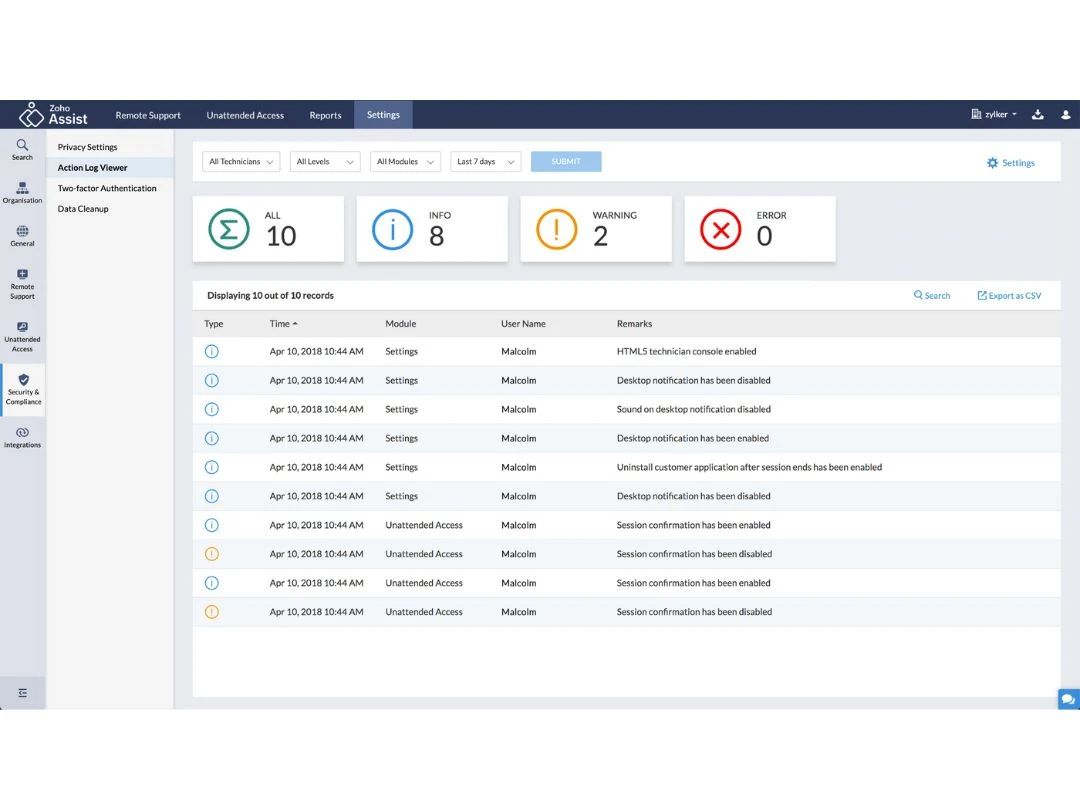
  • icon_check Audit Logs
    Record detailed user and system activity logs for compliance and tracking.
  • icon_check Multi-Factor Authentication (MFA)
    Add an extra layer of security with multi-factor verification.
  • icon_check HIPAA Compliance
    Adhere to healthcare data protection regulations.
  • icon_check Role-Based Access Control (RBAC)
    Restrict permissions based on user roles and responsibilities.
  • icon_check GDPR/CCPA Compliance
    Ensure data privacy compliance with GDPR/CCPA standards.
  • icon_check End-to-End Encryption
    Secure data transmission with 256-bit AES encryption.
  • icon_check Dynamic IP Whitelisting
    Limit access to predefined IP addresses for enhanced security.

Customization & Personalization

  • icon_check Customizable Branding
    Add company logos and themes for a professional interface.
  • icon_check Customizable Toolbars
    Tailor toolbars to suit specific workflows and preferences.
  • icon_check Session Scripting
    Automate repetitive tasks using custom scripts during sessions.
  • icon_check Language Localization
    Support multiple languages for global users.
  • icon_check Flexible UI Layout
    Adjust interface elements for improved usability and efficiency.
  • icon_check Custom Keyboard Mapping
    Create custom shortcuts for efficient remote operations.

Automation & Workflow

  • icon_check Task Automation 
    Automate repetitive processes during or after remote sessions.
  • icon_check Scheduled Tasks
    Set specific tasks to run at predefined times for efficiency.
  • icon_check Remote Wake-on-LAN
    Power on devices remotely from a low-power or off state.
  • icon_check Workflow Automation
    Simplify operations by automating workflows across devices.

Analytics & Reporting

  • icon_check Performance Metrics
    Monitor connection speed, uptime, and session quality metrics.
  • icon_check Detailed Session Reports
    Generate session summaries with time and activity logs.
  • icon_check User Activity Reports
    Track login history and session activities for all users.
  • icon_check Error Logs
    Record system errors for troubleshooting and resolution.
  • icon_check Customizable dashboards
    Personalize dashboards for quick access to key metrics.

Integrations

  • icon_check Ticket Management
    Integrate with helpdesk software for seamless support workflows.
  • icon_check API Integration
    Connect with third-party tools via API for enhanced functionality.
  • icon_check Third Party Integration
    Enable compatibility with existing software ecosystems.
  • icon_check Patch Management
    Monitor and deploy software updates to ensure system security.

Administrative Features

  • icon_check Device Management
    Centrally manage connected devices across an organization.
  • icon_check User Access Management
    Control user roles and permissions
  • icon_check Access Logs
    A record of user access events, detailing who accessed the system
  • icon_check Admin Console
    Oversee user activity and session management from a central console.
  • icon_check Centralized Connection Management
    Manage all remote connections from one interface.
  • icon_check Patch Management
    Monitor and deploy software updates to ensure system security.
Zoho Assist Demo Video play icon

Get Zoho Assist Demo

Watch the demo video to explore key features, real workflows, and how the software fits your business needs.

Understand
Key Features
Personal
Demo Insights
Interactive
Demo Support

Zoho Assist Specifications

Supported Platforms
Windows Windows iOS iOS Android Android MacOS MacOS Linux Linux
Devices
Desktop Desktop Mobile Mobile Tablet Tablet iPad iPad
Deployment
Cloud-Based Cloud-Based Perpetual Perpetual
Suitable For
All Industries
Business Specific
All Businesses
Business Size
Small Business Startups Medium Business Enterprises
Customer Support
Email Communities
Language
English
Integration
API Integration
Training Resources
Documentation Videos

Explore the Best Alternative Solutions Similar to Your Business Size and Needs

Zoho Assist Review

4.1

Out of 5

img

Overall Rating

Based on
6 Verified Ratings

Rating Breakdown

  • Features 4
  • Value for Money 4
  • Ease of Use 4.2
  • Customer Support 4.3

91% Recommend this Product

Add Review

Techjockey Trusted Reviews from Verified Users

No reviews are currently available for Zoho Assist. Discover similar Remote Desktop Software reviews
  • AnyDesk

    4.6

    Whats great - Lightning-fast remote desktop connections, allowing you to access your computer from anywhere with minimal delay. read more
  • TeamViewer

    4.4

    Whats great - It is extremely easy to use and fast. It allows connecting to a computer from any device with a simple ID and password. It in... read more

  • Parsec

    4.2

    Whats great - Lightweight, runs smoothly even on weak devices. read more

Compare Zoho Assist With other Remote Desktop Software

Products
Ratings
Pricing
Device Supported
Deployment
Supported Platforms
  • img

    Zoho Assist

  • 4.1

  • AED 44.00 excl. GST

  • Desktop

    Mobile

  • Web based

    On Premises

  • Windows

    Mac OS

  • img

    AnyDesk

  • 4.6

  • Price On Request

  • Desktop

    Mobile

  • Web based

    On Premises

  • Windows

    Mac OS

  • img

    UltraViewer

  • 4.2

  • Price On Request

  • Desktop

    Mobile

  • Web based

    On Premises

  • Windows

    Mac OS

  • img

    TeamViewer

  • 4.3

  • Price On Request

  • Desktop

    Mobile

  • Web based

    On Premises

  • Windows

    Mac OS

  • img

    RustDesk

  • 4.3

  • Price On Request

  • Desktop

    Mobile

  • Web based

    On Premises

  • Windows

    Mac OS

  • img

    TSPlus

  • 4.5

  • Price On Request

  • Desktop

    Mobile

  • Web based

    On Premises

  • Windows

    Mac OS

  • img

    Duet Display

  • 4.4

  • Price On Request

  • Desktop

    Mobile

  • Web based

    On Premises

  • Windows

    Mac OS

  • img

    Iperius Remote

  • 4.1

  • Price On Request

  • Desktop

    Mobile

  • Web based

    On Premises

  • Windows

    Mac OS

  • img

    Parsec

  • 4.2

  • Price On Request

  • Desktop

    Mobile

  • Web based

    On Premises

  • Windows

    Mac OS

(2) Product(s) selected

Zoho Assist Alternatives

See All Zoho Assist Alternatives

Starting Price:

$19.90 /Year

Starting Price:

$298.80 /User/Year

Starting Price:

$9.90 /Month

Starting Price:

$9.99 /User/Month
Starting Price:

$60.00 /Month
Starting Price:

$4.00 /Month
Starting Price:

$42.96 /Year
Starting Price:

€33.00 /Quarter
Available

Price on Request

What is the maximum file size limit in Zoho Assist?

You can transfer any types of files using the software as long as those are within 2GB.

What is the function of Run As Service in Zoho Assist?

When the ‘Run As Service’ function is executed, the technician can Reboot the system, or Send Alt+Ctrl+Delt and perform other operations.

What are the system requirements for Zoho Assist?

Zoho Assist works on Windows, macOS, Linux, iOS, and Android, with a stable 1 Mbps internet connection recommended for smooth sessions.

Can I get an app for Zoho Assist?

Yes, the software has a mobile app for both Android as well as iOS.

Can I get a demo of Zoho Assist?

Yes, Techjockey will provide a live demo of the software as per your chosen date and time.

What is Zoho Assist used for?

Zoho Assist is intended for IT support, remote access and troubleshooting. It enables technicians to diagnose and resolve problems or simply gain access to client devices for software installation or remote control. It is commonly used in providing customer support, managing devices remotely, and accessing computers and servers without supervision among other activities.

How to use Zoho Assist?

To use Zoho Assist, create an account and start a session by sending an invite link or session ID to the client. Once they join and enable remote access, you can control their device to manage files or troubleshoot issues. Conclude by ending the session and sharing a report if needed.

Is Zoho Assist free?

Yes, Zoho Assist provides limited functionalities free version which includes basic remote assistance with screen sharing. More complex functionalities such as unattended access and multiple sessions are possible under the paid plans available.

Is Zoho Assist safe?

Yes, it's secure to make use of Zoho Assist since it incorporates SSL and also AES 256-bit encryption while connecting to a remote desktop to protect the data. In addition, session-based authentication, multi-factor authentication (MFA), and audit trails are provided for added security.

Does Zoho Assist work on Android?

Yes, Zoho Assist is available for Android. Users can install the Zoho Assist app from the Google Play Store to remotely access or control Android devices or join support sessions on the go.

How much does Zoho Assist cost?

The Zoho Assist price in the US starts at AED 44.00 at techjockey.com.

Terms and Condtions

close

Users with registered businesses can purchase goods from merchants on the platform to satisfy their business needs. Users are not permitted to utilize any products acquired through the platform for resale, advertising, business, or further distribution.

For each purchase made, users will receive a Tax Invoice (or 'GST invoice') that includes specific details such as:

  • the GSTIN of the user associated with their registered business, and

  • the specified Entity Name for their business.

It should be noted that not all products are eligible for GST Invoice. Only the products displayed by participating sellers with the 'GST-based Invoice Available' callout on the product description page would qualify.

Certain goods and services are not eligible to get a GST Invoice, including items with VAS, i.e., Value Added Services (e.g., Total Mobile Protection/Assured Buyback) and those involving an exchange offer at the time of purchase.

Users must ensure the accuracy of the GSTIN, and business entity name provided for the GST Invoice. Requests for corrections into GST Invoice would not be accommodated by Techjockey.com or any Seller, and any issues arising from user-provided information are the sole responsibility of users.

Techjockey.com is not liable for the GST Invoice or any associated input tax credit. To efficiently claim an input tax credit, users should select the registered place of business address as per the GST authority's data and follow the provisions of the GST Act and rules.

To claim an input tax credit, the delivery and billing addresses must match. Furthermore, input tax credits will not be granted if the delivery address and GSTIN on the invoice are from different states. In case of incorrect GST details provided during the order placement, the order will be canceled automatically.

20,000+ Software Listed 20,000+ Software Listed

Best Price Guaranteed Unbiased Comparison

Free Expert Consultation Read Authentic Reviews

2M+ Happy Customers 500,000+ Monthly Users