1 Answers
A:
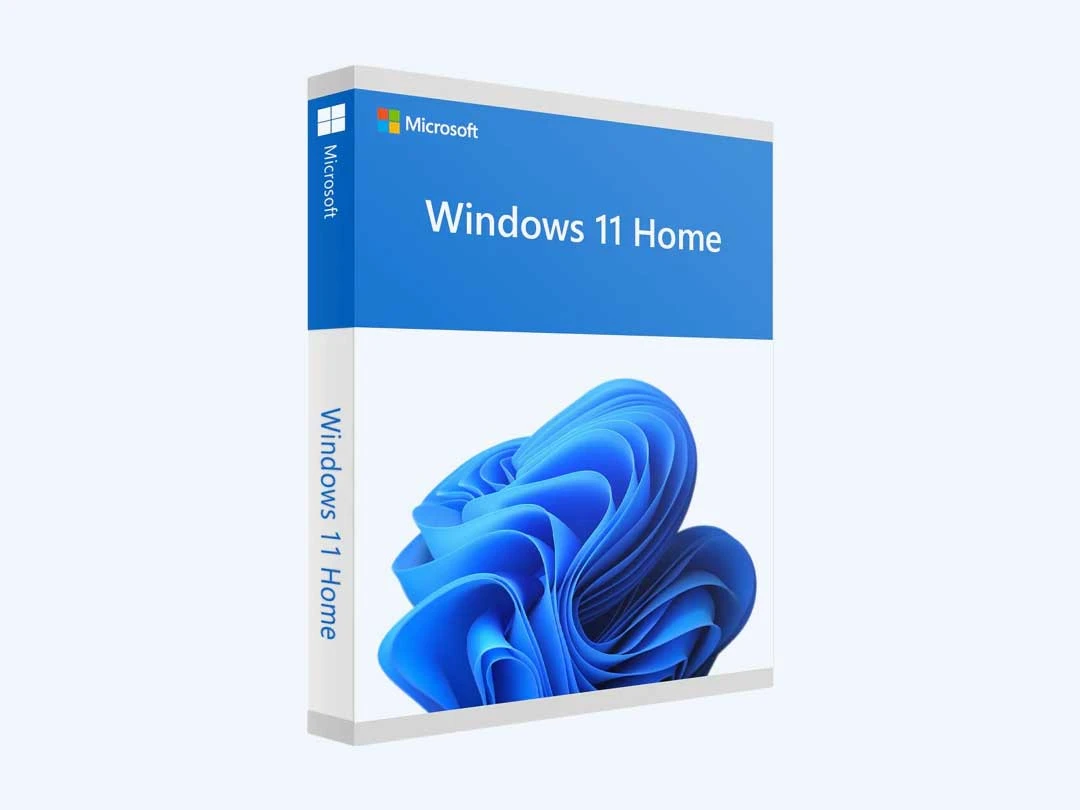
Installing Windows involves creating a bootable USB drive using the Media Creation Tool from Microsoft's website. Insert the USB into the target computer, restart it, and access the boot menu to select the USB drive. Follow the installer prompts, including entering a product key if required. You can choose a custom installation to manage partitions. After installation, set up your account and update drivers.
For macOS, download the installer from the Mac App Store and create a bootable USB using the Terminal app. Boot the target Mac from the USB installer by holding the appropriate key combination during startup. Use the installer, potentially using Disk Utility for a clean install.
For Linux, download the ISO file from the distribution's official website. Use a tool like Rufus or balenaEtcher to create a bootable USB. Boot the computer from the USB by accessing the boot menu. The installer will guide you through setup, including options for disk partitioning.
Related Question and Answers
Q:
A:
The Windows 10 media creation tool helps to create bootable USB or DVD installation media.
Q:
A:
You can use the keyboard shortcut: WINDOWS + SHIFT + S. This instantly opens the Snipping Toolbar and you can use them to build realistic chatbot responses and stories
Q:
A:
Linux is a family of open-source, Unix-like operating systems built around the Linux Kernel, developed by Linus Torvalds in 1991. There are many different distributions (distros) built around it including Ubuntu, Debian, Fedora etc.
Q:
A:
Spooling Simultaneous Peripheral Operations Online is an operating system technique used to manage input/output operations efficiently by temporarily storing data in a buffer until a device is ready to process it.
Q:
A:
A time sharing operating system allows multiple users to share a single computer resource simultaneously.
Find the Best Operating System
Explore all products with features, pricing, reviews and more
View All SoftwareDisclaimer
Techjockey’s software industry experts offer advice for educational and informational purposes only. A category or product query or issue posted, created, or compiled by Techjockey is not meant to replace your independent judgment.
 20,000+ Software Listed
 Best
Price Guaranteed
Best
Price Guaranteed
 Free Expert
Consultation
Free Expert
Consultation
 2M+
Happy Customers
2M+
Happy Customers
 USA
USA UAE
UAE