USA
USA UAE
UAESmall Business
Designed for startups and growing businesses
See More




Brand: CaptureLeave
CaptureLeave is a powerful leave management software and vacation tracking system that improves the overall efficiency of applying for and administering leaves and vacations. With CaptureLeave’s cloud-based software, human resource departments can handle leave management and vacation trackin...
See MoreHave you used CaptureLeave before?
Share your insights for better experience
Brand: CaptureLeave
Founded Year: 2012
CaptureLeave is a SaaS application for managing leaves of absence and vacation tracking.
 Customization Reporting Leave Management Detailed Documentation Messaging System Billing & Invoicing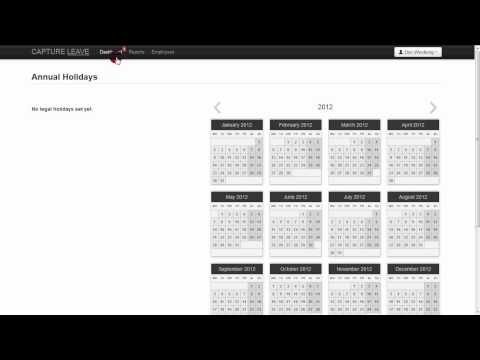

Watch the demo video to explore key features, real workflows, and how the software fits your business needs.
 Ubuntu
  Windows
  MacOS
MacOS  Linux
Linux  Desktop
  Mobile
  Tablet
  iPad
iPad  Cloud-Based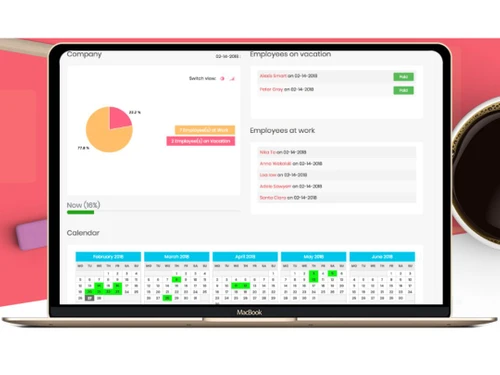
Small Business
Designed for startups and growing businesses
Medium Business
Built for business growth and flexibility
Enterprises
Designed for complex and large-scale business needs
5
Out of 5

Overall Rating
Based on
1 Verified Review
Rating Breakdown
100% Recommend this Product
Add Review
Apr 9, 2018
Techjockey Verified
“Fantastic leave software, great system easy to use”
Pros
Great tracking and great admin tools. Very accurate calculations super easy to use.
Cons
Customer Service often lost paperwork, very often I had to refax information or call which could be frustrating.

CaptureLeave
Price On Request
Desktop
Mobile
Web based
On Premises
Windows
Mac OS

Planmyleave
Price On Request
Desktop
Mobile
Web based
On Premises
Windows
Mac OS

absence.io
Price On Request
Desktop
Mobile
Web based
On Premises
Windows
Mac OS

Timetastic
Price On Request
Desktop
Mobile
Web based
On Premises
Windows
Mac OS

Tilt Leave Management
Price On Request
Desktop
Mobile
Web based
On Premises
Windows
Mac OS

LeaveBoard
Price On Request
Desktop
Mobile
Web based
On Premises
Windows
Mac OS

Timeular
Price On Request
Desktop
Mobile
Web based
On Premises
Windows
Mac OS

Vacation Tracker
Price On Request
Desktop
Mobile
Web based
On Premises
Windows
Mac OS

edays
Price On Request
Desktop
Mobile
Web based
On Premises
Windows
Mac OS

LeaveSource
Price On Request
Desktop
Mobile
Web based
On Premises
Windows
Mac OS

Leave Dates
Price On Request
Desktop
Mobile
Web based
On Premises
Windows
Mac OS
(0) Product(s) selected
Starting Price:
$2 /User/Month
Starting Price:
$25 /Month
Available
Price on Request

Available
Price on Request

Available
Price on Request
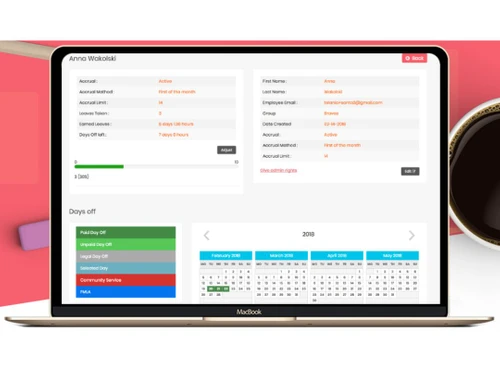
To remove approved days off follow these steps: To to the [Employees] tab of your CaptureLeave account Search for and click on the name of the employee you need to change the approved days off Scroll to the [Days Off Approved] section (on the left) and click on [Delete] next to each approved day you want to cancel or remove.
To change your password, you have to log in using your existing password: Then click the drop down arrow next to your name on the top right corner of your account Select the [Change Password] option Enter your existing (old) password and then enter your new password (repeat this to ensure it is correct) Click [Save] and you are done.
Setting up Custom Leave Labels: To set up Sick Leave which won't impact vacation balance, use Custom Labels. First create a Custom Label (maybe Sick Leave) and make sure it is set as a NO for [Paid] value. This way when employees select the type of leave as Sick Leave, CaptureLeave will know not to deduct this from the user's vacation balance.
20,000+ Software Listed
Best Price Guranteed
Free Expert Consultation
2M+ Happy Customers
Terms and Condtions

Users with registered businesses can purchase goods from merchants on the platform to satisfy their business needs. Users are not permitted to utilize any products acquired through the platform for resale, advertising, business, or further distribution.
For each purchase made, users will receive a Tax Invoice (or 'GST invoice') that includes specific details such as:
the GSTIN of the user associated with their registered business, and
the specified Entity Name for their business.
It should be noted that not all products are eligible for GST Invoice. Only the products displayed by participating sellers with the 'GST-based Invoice Available' callout on the product description page would qualify.
Certain goods and services are not eligible to get a GST Invoice, including items with VAS, i.e., Value Added Services (e.g., Total Mobile Protection/Assured Buyback) and those involving an exchange offer at the time of purchase.
Users must ensure the accuracy of the GSTIN, and business entity name provided for the GST Invoice. Requests for corrections into GST Invoice would not be accommodated by Techjockey.com or any Seller, and any issues arising from user-provided information are the sole responsibility of users.
Techjockey.com is not liable for the GST Invoice or any associated input tax credit. To efficiently claim an input tax credit, users should select the registered place of business address as per the GST authority's data and follow the provisions of the GST Act and rules.
To claim an input tax credit, the delivery and billing addresses must match. Furthermore, input tax credits will not be granted if the delivery address and GSTIN on the invoice are from different states. In case of incorrect GST details provided during the order placement, the order will be canceled automatically.