USA
USA UAE
UAESmall Business
Designed for startups and growing businesses

See More




Brand: White Mountain
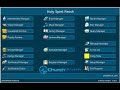
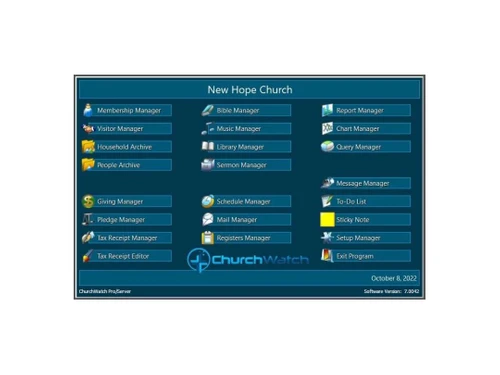
White Mountain Software makes it possible. Our church management software is powerful, smart, great looking, easy to learn and fun to use. Best of all, it does all the hard work for you and will have you looking like a genius in no time!
See MoreHave you used ChurchWatch before?
Share your insights for better experience
Brand: White Mountain
Founded Year: 1999
White Mountain Software has been empowering church offices with exceptional Church Management Software (CMS)
 Easy to understand Suitability Stable and reliable Flexible Theming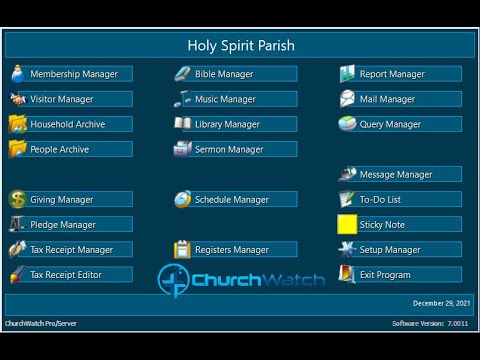

Watch the demo video to explore key features, real workflows, and how the software fits your business needs.
 Windows
  Desktop
  Cloud-Based
Small Business
Designed for startups and growing businesses
Medium Business
Built for business growth and flexibility
Enterprises
Designed for complex and large-scale business needs
4.2
Out of 5

Overall Rating
Based on
5 Verified Ratings
Rating Breakdown
90% Recommend this Product
Add ReviewThis product has no reviews yet. Be the first to leave your feedback.
Add Review
ChurchWatch
Price On Request
Desktop
Mobile
Web based
On Premises
Windows
Mac OS

Tithely
Price On Request
Desktop
Mobile
Web based
On Premises
Windows
Mac OS

Pushpay
Price On Request
Desktop
Mobile
Web based
On Premises
Windows
Mac OS

CHUMS
Price On Request
Desktop
Mobile
Web based
On Premises
Windows
Mac OS

Planning Center
Price On Request
Desktop
Mobile
Web based
On Premises
Windows
Mac OS

Aplos
Price On Request
Desktop
Mobile
Web based
On Premises
Windows
Mac OS

Anedot
Price On Request
Desktop
Mobile
Web based
On Premises
Windows
Mac OS

ACS Church Management Software
Price On Request
Desktop
Mobile
Web based
On Premises
Windows
Mac OS

Vanco Faith
Price On Request
Desktop
Mobile
Web based
On Premises
Windows
Mac OS

Tabernacle
Price On Request
Desktop
Mobile
Web based
On Premises
Windows
Mac OS

Churchteams
Price On Request
Desktop
Mobile
Web based
On Premises
Windows
Mac OS
(0) Product(s) selected
Starting Price:
$72 /Month
Available
Price on Request
Available
Price on Request
Available
Price on Request
Available
Price on Request

Starting Price:
$72 /Month
All ChurchWatch reports are printed in color format even if black and white. On certain printers (we have seen this on Ricoh), set your printer/print job for color printing instead of black and white. If the report has no color objects on it, it will still print OK in black and white.
There should be no issues with the software upgrade program, but a few users do seem to find that this program is blocked on their PC. First of all, try disabling the UAC (User Account Control) and see if that helps. Another suggestion is to temporarily disable any firewall or anti-virus software.
This type of error can occur if you have a power outage or computer crash while ChurchWatch is open. White Mountain Software highly recommends the Windows XP operating system which is much more stable than Windows 95/98. The solution is very simple. First make sure ChurchWatch is shut down on all computers. Next, run the Database Rescue Utility by selecting START->PROGRAMS->CHURCHWATCH3->DATABASE RESCUE UTILITY. When the program opens make sure that "Rebuild Index Files" and "Reindex all Tables" are checked off. Also make sure that at least the "Do Home Folder" checkbox is checked. Then click the Rescue button. This should solve the problem with no loss of data.
This may occur in very rare cases when using Windows XP. To fix, right-click on the ChurchWatch icon, choose Properties. Then choose Advanced. Make sure the display window is blank (no chosen options) and then click Apply. On some installations, the program may be setup for 256 colours which is incorrect. Make sure that no option is chosen and then Windows XP will use the default.
You'll need a good Pentium class computer or better We recommend as much memory as you can get but 128 Meg should work nicely. 100 Meg of disk space is also recommended and a color monitor with at least 800x600 resolution set to high color. A backup system (e.g. zip drive, USB memory stick etc) is also recommended. ChurchWatch runs only on Windows XP, Windows 98, Windows Me, Windows 2000 Service Pack 3 or later and Windows Server 2003. Installation on Windows NT 4.0 Terminal Server Edition is not supported. You can run on any Windows compatible network if networking. White Mountain Software recommends Windows XP but other operating systems (listed above) are also supported.
20,000+ Software Listed
Best Price Guranteed
Free Expert Consultation
2M+ Happy Customers
Terms and Condtions

Users with registered businesses can purchase goods from merchants on the platform to satisfy their business needs. Users are not permitted to utilize any products acquired through the platform for resale, advertising, business, or further distribution.
For each purchase made, users will receive a Tax Invoice (or 'GST invoice') that includes specific details such as:
the GSTIN of the user associated with their registered business, and
the specified Entity Name for their business.
It should be noted that not all products are eligible for GST Invoice. Only the products displayed by participating sellers with the 'GST-based Invoice Available' callout on the product description page would qualify.
Certain goods and services are not eligible to get a GST Invoice, including items with VAS, i.e., Value Added Services (e.g., Total Mobile Protection/Assured Buyback) and those involving an exchange offer at the time of purchase.
Users must ensure the accuracy of the GSTIN, and business entity name provided for the GST Invoice. Requests for corrections into GST Invoice would not be accommodated by Techjockey.com or any Seller, and any issues arising from user-provided information are the sole responsibility of users.
Techjockey.com is not liable for the GST Invoice or any associated input tax credit. To efficiently claim an input tax credit, users should select the registered place of business address as per the GST authority's data and follow the provisions of the GST Act and rules.
To claim an input tax credit, the delivery and billing addresses must match. Furthermore, input tax credits will not be granted if the delivery address and GSTIN on the invoice are from different states. In case of incorrect GST details provided during the order placement, the order will be canceled automatically.