linkedin
Supremo logo
play Supremo - How to access and control remote PCs, Mac and servers with this tool
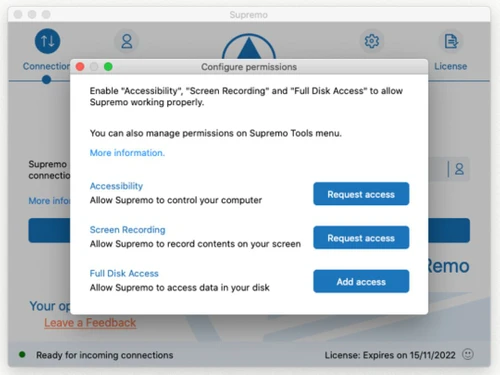
supremo-login
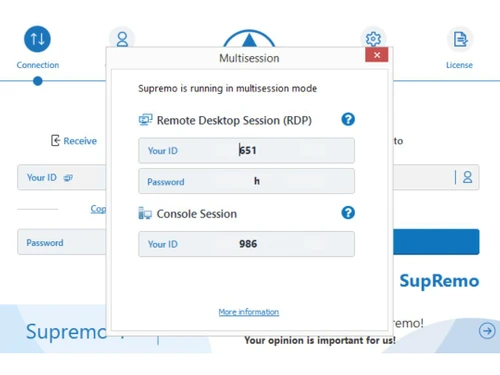
supremo-multisession

Supremo

Brand: NanoSystems

  • 4.8

  • 6 Ratings & 6 Reviews

Supremo is a remote desktop application designed for easy access to remote devices. It facilitates various business needs, from remote support to collaborative work. The software is available on multiple platforms.

See More

Have you used Supremo before?

Share your insights for better experience

Add a Review
Starting Price
€33

View plans

100% Genuine
Products
Best Price
Guaranteed
Safe & Secure
Payment
  • Description

  • Pricing

  • Features

  • Specification

  • Review

  • Compare

  • Alternatives

  • FAQ

  • Questions

Starting at €33

Supremo Software Overview

What is Supremo?

Supremo is a powerful and versatile remote desktop software designed to provide secure access to remote computers, servers, and devices. It bridges the gap between physical distance and seamless access, streamlining remote technical support and enhancing business collaboration.

With its user-friendly interface, Supremo simplifies remote control, making it accessible to both technical and non-technical users. It empowers individuals and businesses to connect and interact with remote systems effortlessly, regardless of their technical expertise. Supremo's cross-platform compatibility further enhances its flexibility, allowing for seamless integration with various operating systems and devices, accommodating diverse business needs.

Whether you're a tech support specialist troubleshooting a client's computer, a team collaborating on a project, or a business owner managing remote employees, Supremo provides a reliable and efficient solution for all your remote access needs.

Why Choose Supremo Remote Desktop Software?

  • Simplified Remote Access: Supremo's intuitive interface makes it incredibly easy to connect to remote systems, eliminating the need for complex configurations or technical knowledge. This simplicity allows users to quickly establish connections and access remote devices with minimal effort.
  • Enhanced Support and Collaboration: Supremo empowers users to provide remote support efficiently and effectively, enabling them to resolve technical issues and assist users in real time. The software also facilitates real-time collaboration on projects, allowing team members to work together seamlessly from different locations.
  • Expanded Business Reach: Supremo's accessibility across multiple platforms and devices allows businesses to extend their reach without geographical limitations.
  • Secure and Reliable Platform: Supremo prioritises secure remote connectivity, ensuring data protection and business continuity.
  • Streamlined Remote Management: Supremo allows administrators to manage multiple devices from a central location, simplifying remote deployment, configuration, and maintenance tasks. This feature enhances efficiency and reduces administrative overhead, enabling businesses to manage their remote infrastructure effectively.
  • Customizable Security Settings: Supremo provides users with granular control over security settings, allowing them to tailor the software to their specific needs. This customization ensures that security measures are aligned with individual and organisational requirements, providing optimal protection for sensitive data and systems.

Benefits of Supremo Remote Desktop Software

  • Seamless Remote Support: With its user-friendly interface and efficient connection capabilities, Supremo empowers support teams to resolve issues quickly and efficiently, minimising downtime and improving customer satisfaction.
  • Efficient Team Collaboration: This software fosters real-time collaboration across remote teams, enhancing project workflows and increasing productivity.
  • Increased Productivity: By enabling users to access resources and provide support remotely, Supremo reduces travel time, eliminates geographical barriers, and allows teams to focus on their core tasks, leading to improved efficiency and productivity.
  • Elevated Security and Reliability: Supremo focuses on user security with dependable connectivity. The software employs advanced encryption protocols to secure data transmission, ensuring that sensitive information is protected during remote access.
  • Reduced Costs: By minimising travel expenses and enabling remote support and collaboration, Supremo can significantly reduce operational costs for businesses.
  • Scalability and Flexibility: Supremo can be scaled to meet the needs of businesses of all sizes, providing a flexible solution for managing remote access requirements.

Pricing of Supremo

Supremo pricing starts at €33 at techjockey.com.

The pricing model is based on different parameters, including the amount of bandwidth you need, the number of servers you need, and the features you need. For further queries related to the product, you can contact our product team and learn more about the pricing and offers.

Read more

NanoSystems Company Details

Founded Year:  1986

Your business partner since 1986. Developer of the software Supremo for #RemoteDesktop control, Uranium Backup for #Windows #Backup and Console.

Director/Founders Giorgio Banchieri
Company Size 1-100 Employees

Supremo Pricing & Plans

Solo
Starting at €33
    • Quantity

      Quantity
      Quantity
    • Monthly

      Monthly
      Monthly

Key Features

  • Shortcut Functionality

  • Simultaneous connections-Single

  • Unlimited enabled devices and users

  • Unlimited Remote Endpoints / PCs

  • Unattended Access

  • Multiplatform

  • Automatic Updates

  • Multimonitor Support

  • Remote Printing

  • Command Line Configuration

Business
Starting at €59
    • Quantity

      Quantity
      Quantity
    • Monthly

      Monthly
      Monthly

Key Features

  • Shortcut Functionality

  • Simultaneous connections-3

  • Unlimited enabled devices and users

  • Unlimited Remote Endpoints / PCs

  • Unattended Access

  • Multiplatform

  • Automatic Updates

  • Multimonitor Support

  • Remote Printing

  • Command Line Configuration

Professional
Starting at €128
    • Quantity

      Quantity
      Quantity
    • Monthly

      Monthly
      Monthly

Key Features

  • Shortcut Functionality

  • Simultaneous connections-3

  • Unlimited enabled devices and users

  • Unlimited Remote Endpoints / PCs

  • Unattended Access

  • Multiplatform

  • Automatic Updates

  • Multimonitor Support

  • Remote Printing

  • Command Line Configuration

Supremo Features

Connection & Accessibility

  • icon_check Remote printing
    Print files from a remote device to a local printer instantly.
  • icon_check Unattended Access
    Securely access devices without user intervention for maintenance or updates.
  • icon_check Cross-Platform Compatibility
    Seamless access across Windows, macOS, Linux, iOS, and Android devices.
  • icon_check Mobile Access Support
    Remotely control systems using smartphones or tablets anytime, anywhere.
  • icon_check Multi-Window Control
    Manage multiple application windows on the remote device in one session.
  • icon_check Persistent Session
    Automatically reconnect to maintain active sessions during interruptions.
  • icon_check Clipboard Syncing
    Copy and paste text or files between local and remote devices seamlessly.
  • icon_check Browser-Based Access
    Use remote desktop features directly via a web browser without additional software.
  • icon_check Multi-Monitor Navigation
    View and control multiple monitors on the remote system efficiently.

Session Management & Control

  • icon_check Multi Session Support
    Handle multiple remote sessions simultaneously with ease.
  • icon_check Session Handover
    Transfer active sessions to another technician without disruptions.
  • icon_check Remote Reboot Options
    Reboot devices remotely, including into Safe Mode if needed.
  • icon_check Queue & Schedule Sessions
    Organize and schedule remote sessions for efficient workflow.
  • icon_check Session Timeout & Auto-Lock
    Automatically end or lock sessions after a period of inactivity.
  • icon_check Real-Time Control Customization
    Adjust settings like resolution and bandwidth during sessions.
  • icon_check Blank Screen Mode
    Blackout the remote screen to ensure privacy during access.
  • icon_check Session Recording & Playback
    Record sessions for review, training, or compliance purposes.

System Management & Support

  • icon_check Remote Task Manager
    Manage processes and applications on the remote device effectively.
  • icon_check Two-Way File Transfer
    Send and receive files securely between local and remote devices.
  • icon_check System Health Monitoring
    Track CPU, memory, and disk usage in real-time during sessions.
  • icon_check Bulk File Transfer
    Transfer multiple files or folders in a single operation.
  • icon_check Automated System Diagnostics
    Run diagnostics to identify and resolve issues remotely.
  • icon_check Remote Command Prompt Access
    Access and execute commands in the terminal remotely.
  • icon_check Session Note Taking
    Record notes during sessions for follow-ups or documentation.
  • icon_check Direct File Access Permissions
    Control access to specific files during remote sessions.
  • icon_check File Sync & Auto Update
    Synchronize and update files automatically across devices.

Collaboration & Communication

  • icon_check In-Session Chat
    Communicate with users during remote sessions via real-time chat.
  • icon_check User Grouping & Management
    Organize users into groups for better session management.
  • icon_check Two-Way Desktop Sharing
    Share and receive desktop control for joint troubleshooting.
  • icon_check Video Conferencing
    Engage in video calls for collaboration or troubleshooting.
  • icon_check Annotation & Drawing Tools
    Highlight or annotate on the screen to guide users effectively.
  • icon_check Screen Sharing with Control
    Share and allow control of screens for collaborative tasks.
  • icon_check Multiple Technician Access
    Allow multiple technicians to join and manage a session.
  • icon_check Shared Toolbox
    Share diagnostic tools and resources among team members.

Security & Compliance

  • icon_check Audit Logs
    Record detailed user and system activity logs for compliance and tracking.
  • icon_check Multi-Factor Authentication (MFA)
    Add an extra layer of security with multi-factor verification.
  • icon_check GDPR/CCPA Compliance
    Ensure data privacy compliance with GDPR/CCPA standards.
  • icon_check End-to-End Encryption
    Secure data transmission with 256-bit AES encryption.
  • icon_check Role-Based Access Control (RBAC)
    Restrict permissions based on user roles and responsibilities.
  • icon_check Dynamic IP Whitelisting
    Limit access to predefined IP addresses for enhanced security.
  • icon_check HIPAA Compliance
    Adhere to healthcare data protection regulations.

Customization & Personalization

  • icon_check Customizable Branding
    Add company logos and themes for a professional interface.
  • icon_check Customizable Toolbars
    Tailor toolbars to suit specific workflows and preferences.
  • icon_check Flexible UI Layout
    Adjust interface elements for improved usability and efficiency.
  • icon_check Session Scripting
    Automate repetitive tasks using custom scripts during sessions.
  • icon_check Custom Keyboard Mapping
    Create custom shortcuts for efficient remote operations.
  • icon_check Language Localization
    Support multiple languages for global users.

Automation & Workflow

  • icon_check Task Automation
    Automate repetitive processes during or after remote sessions.
  • icon_check Workflow Automation
    Simplify operations by automating workflows across devices.
  • icon_check Scheduled Tasks
    Set specific tasks to run at predefined times for efficiency.
  • icon_check Remote Wake-on-LAN
    Power on devices remotely from a low-power or off state.

Analytics & Reporting

  • icon_check Customizable Dashboards
    Personalize dashboards for quick access to key metrics.
  • icon_check Detailed Session Reports
    Generate session summaries with time and activity logs.
  • icon_check User Activity Reports
    Track login history and session activities for all users.
  • icon_check Error Logs
    Record system errors for troubleshooting and resolution.
  • icon_check Performance Metrics
    Monitor connection speed, uptime, and session quality metrics.

Integrations

  • icon_check Ticket Management
    Integrate with helpdesk software for seamless support workflows.
  • icon_check API Integration
    Connect with third-party tools via API for enhanced functionality.
  • icon_check Third Party Integration
    Enable compatibility with existing software ecosystems.
  • icon_check Patch Management
    Monitor and deploy software updates to ensure system security.

Administrative Features

  • icon_check Device Management
    Centrally manage connected devices across an organization.
  • icon_check User Access Management
    Control user roles and permissions
  • icon_check Access Logs
    A record of user access events, detailing who accessed the system
  • icon_check Admin Console
    Oversee user activity and session management from a central console.
  • icon_check Patch Management
    Monitor and deploy software updates to ensure system security.
  • icon_check Centralized Connection Management
    Manage all remote connections from one interface.

Others

  • icon_check Remote Support Invoicing
  • icon_check License Sharing
  • icon_check Session Timeout
  • icon_check Automatic Updates
  • icon_check Address Book
  • icon_check Contact Sharing
  • icon_check Support Queue
  • icon_check Automatic and Massive Installation
Supremo Demo Video play icon

Get Supremo Demo

Watch the demo video to explore key features, real workflows, and how the software fits your business needs.

Understand
Key Features
Personal
Demo Insights
Interactive
Demo Support

Supremo Specifications

Supported Platforms
Ubuntu Ubuntu Windows Windows iOS iOS Android Android MacOS MacOS Linux Linux
Devices
Desktop Desktop Mobile Mobile Tablet Tablet iPad iPad
Deployment
Cloud-Based Cloud-Based Perpetual Perpetual
Suitable For
All Industries
Business Specific
All Businesses
Business Size
Small Business Startups Medium Business Enterprises SMBs SMEs MSMBs MSMEs Freelancers
Customer Support
Email Communities
Language
English
Training Resources
Videos

Explore the Best Alternative Solutions Similar to Your Business Size and Needs

Supremo Reviews

4.8

Out of 5

img

Overall Rating

Based on
6 Verified Reviews

Rating Breakdown

  • Features 4.6
  • Value for Money 4.8
  • Ease of Use 4.9
  • Customer Support 4.7

95% Recommend this Product

Add Review

Naveen

User

4.8

Reviewed on: Jun 4, 2018

Techjockey Verified

“quick response & helpful”

Pros

I spoke with the gentleman from Techjockey, and within fifteen minutes, I received the first of six or seven calls that I received that day from vendors seeking to meet my need for a billing and records platform.?

Cons

N/A

Anuj Shrivastava

User

4.7

Reviewed on: Sep 5, 2018

Techjockey Verified

“Great Functionality, Excellent value”

Pros

We have used Supremo for more than an year to manage Remote Desktops of our clients and unlike other similar software Supermo was stable and provided us with an excellent performance at reasonable cost.

Cons

NO CONS

Rahul

User

4.8

Reviewed on: Nov 14, 2018

Techjockey Verified

“simple & starightforward to use”

Pros

I found Techjockey as part of Google search results for Business Intelligence software. They recommended a few options right away and had the vendors call me directly. Soon after, we were engaged in conversations with the vendors and found the right solution.

Cons

NO CONS

See All Supremo Reviews

Compare Supremo With other Remote Desktop Software

Products
Ratings
Pricing
Device Supported
Deployment
Supported Platforms
  • img

    Supremo

  • 4.8

  • Price On Request

  • Desktop

    Mobile

  • Web based

    On Premises

  • Windows

    Mac OS

  • img

    AnyDesk

  • 4.6

  • ₹ 14580

  • Desktop

    Mobile

  • Web based

    On Premises

  • Windows

    Mac OS

  • img

    TeamViewer

  • 4.3

  • ₹ 8628

  • Desktop

    Mobile

  • Web based

    On Premises

  • Windows

    Mac OS

  • img

    UltraViewer

  • 4.2

  • Price On Request

  • Desktop

    Mobile

  • Web based

    On Premises

  • Windows

    Mac OS

  • img

    RustDesk

  • 4.3

  • Price On Request

  • Desktop

    Mobile

  • Web based

    On Premises

  • Windows

    Mac OS

  • img

    Parsec

  • 4.2

  • Price On Request

  • Desktop

    Mobile

  • Web based

    On Premises

  • Windows

    Mac OS

  • img

    Iperius Remote

  • 4.1

  • Price On Request

  • Desktop

    Mobile

  • Web based

    On Premises

  • Windows

    Mac OS

  • img

    Impero Connect

  • 4.2

  • Price On Request

  • Desktop

    Mobile

  • Web based

    On Premises

  • Windows

    Mac OS

  • img

    NoMachine

  • 4.1

  • Price On Request

  • Desktop

    Mobile

  • Web based

    On Premises

  • Windows

    Mac OS

(0) Product(s) selected

Supremo Alternatives

See All Supremo Alternatives

Starting Price:

$10 /Month

Starting Price:

$45 /Year

Starting Price:

£3 /Month

Available

Price on Request

Starting Price:

$22

Starting Price:

$33 /Device/Year
Articles for Supremo

See All Related Articles

Is Supremo software free?

Supremo software is free to download with a trial version available for testing. A subscription-based service is also available. You can contact our product experts to explore trial options and learn more about different pricing plans at techjockey.com.

How much does Supremo Software Platform Cost?

Supremo software pricing starts at € 11/month/build quarterly at techjockey.com. Pricing is customised based on specific business needs.

Which operating system does Supremo Software Support?

Supremo software supports Windows, macOS, Android, Linux, and iOS operating systems.

Does Supremo offer a free trial or a demo?

A demo of Supremo is available at techjockey.com. You can contact our product experts for more information.

Is Supremo suitable for small businesses?

Yes, Supremo is suitable for small businesses, specifically startups, freelancers, and SMBs. It helps streamline remote access and support for staff and/or clients, promoting productivity and efficiency.

How secure is Supremo?

Supremo emphasises security, though specific security features aren't fully detailed in the context provided. It appears to offer various security features, but more details on those procedures are not present. By providing remote access in a secure manner, Supremo protects both company resources and data.

How does Supremo software work?

Supremo software allows users to remotely access and control devices. It has features like unattended access for efficient support and maintenance, and remote control for various tasks. The software prioritises ease of use and reliable connectivity.

Who are the potential users of Supremo Software?

Supremo is suitable for a broad range of users, including those looking for remote technical support, businesses needing to access remote devices, and individuals needing to control or access their remote equipment. It caters to all industries and business sizes.

Supremo Questions

A:

To stop or disable Supremo updates permanently, you can modify the Supremo configuration file. However, this is not recommended as updates often include security patches and improvements.

Soumya prusty • Oct 28, 2024
Q:

Do hackers use Supremo?

narinder singh • Oct 25, 2024
A:

Yes, hackers can use Supremo to gain unauthorized access to remote computers. It's important to use strong passwords and security measures to protect your devices.

ENAKHI DAS • Oct 27, 2024
Q:

How to hide Supremo from the task bar?

Rowkhu • Oct 22, 2024
A:

To hide Supremo from the task bar, you can minimize it to the system tray. You can also configure Supremo settings to automatically minimize to the system tray on startup.

HONREI AWUNGSHI • Oct 24, 2024
Q:

How to find the password of Supremo?

PRAMOD KUMAR • Oct 20, 2024
A:

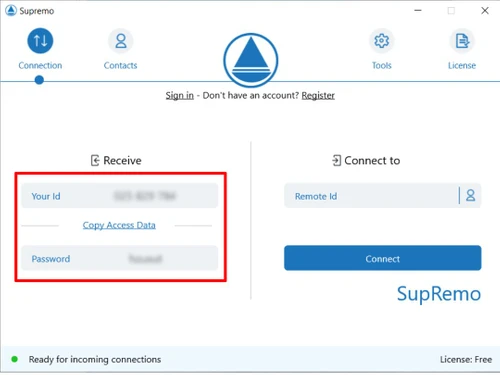
Supremo doesn't use a password. Instead, it uses an access code. The access code is generated by the Supremo server and is provided to the user.

Firdous • Oct 24, 2024
Q:

How to find the password of Supremo in Windows 10?

Dhatri Nagar • Oct 19, 2024
A:

As Supremo doesn't use a password, there's no way to find it in Windows 10. The access code is provided by the Supremo server.

Rajnish Jain • Oct 24, 2024
See All Supremo Questions

20,000+ Software Listed

Best Price Guranteed

Free Expert Consultation

2M+ Happy Customers

Terms and Condtions

close

Users with registered businesses can purchase goods from merchants on the platform to satisfy their business needs. Users are not permitted to utilize any products acquired through the platform for resale, advertising, business, or further distribution.

For each purchase made, users will receive a Tax Invoice (or 'GST invoice') that includes specific details such as:

  • the GSTIN of the user associated with their registered business, and

  • the specified Entity Name for their business.

It should be noted that not all products are eligible for GST Invoice. Only the products displayed by participating sellers with the 'GST-based Invoice Available' callout on the product description page would qualify.

Certain goods and services are not eligible to get a GST Invoice, including items with VAS, i.e., Value Added Services (e.g., Total Mobile Protection/Assured Buyback) and those involving an exchange offer at the time of purchase.

Users must ensure the accuracy of the GSTIN, and business entity name provided for the GST Invoice. Requests for corrections into GST Invoice would not be accommodated by Techjockey.com or any Seller, and any issues arising from user-provided information are the sole responsibility of users.

Techjockey.com is not liable for the GST Invoice or any associated input tax credit. To efficiently claim an input tax credit, users should select the registered place of business address as per the GST authority's data and follow the provisions of the GST Act and rules.

To claim an input tax credit, the delivery and billing addresses must match. Furthermore, input tax credits will not be granted if the delivery address and GSTIN on the invoice are from different states. In case of incorrect GST details provided during the order placement, the order will be canceled automatically.