linkedin
Invideo Studio logo
play How to edit your FIRST YOUTUBE VIDEO (10 easy steps)
highly recommended for
about invideo

Invideo Studio

Brand: INVIDEO

  • 3.9

  • 10 Ratings & 10 Reviews

InVideo is an AI-powered video creation platform designed to make video editing accessible for everyone. The software encompasses various advanced features to create content, especially for social media platforms, with a rich library of content.

See More

Have you used Invideo Studio before?

Share your insights for better experience

Add a Review
Starting Price
$30

View plans

100% Genuine
Products
Best Price
Guaranteed
Safe & Secure
Payment
  • Description

  • Pricing

  • Features

  • Specification

  • Review

  • Compare

  • Alternatives

  • FAQ

Starting at $30

Invideo Studio Software Overview

What is InVideo Studio?

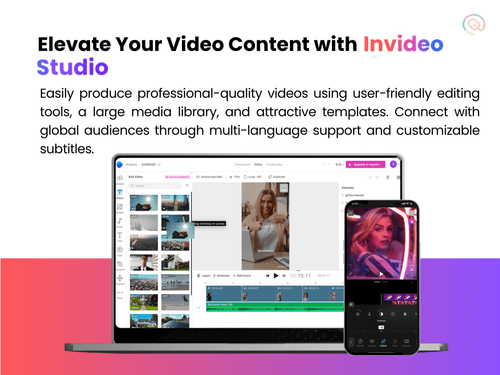
InVideo Studio software is reinventing the way amateurs and professionals attempt video creation. Invideo is an online video editor that helps create stunning, professional videos in minutes. You can use this software across devices and access 5k plus design templates and 9M plus media in the premium category.

Many customizable features and a vast audio library that caters to every mood. InVideo video editing software provides a drag-and-drop editor and round-the-clock live customer service to add value to the user’s workflow. You can access the software on both PC and mobile to create scroll-stopping videos.

Why Choose InVideo Studio?

Users opt for InVideo Studio for the following key reasons:

  • User-Friendliness: The user-friendly interface the software, coupled with drag-and-drop functionality makes it easy to operate for users at any level of experience.
  • Branding Support: Allows adding branding details to every video with fonts, company logos, and color schemes.
  • Rich Library of Stock Videos: The software provides access to 9M plus stock footage that can be used in videos.
  • Multi-Language Support: You can translate your videos into 100-plus languages using AI-driven video editing software.
  • Team Collaboration: The team collaboration feature of InVideo Studio enables users to work simultaneously on the same project in real-time.

Who Uses InVideo Studio?

InVideo studio is curated with ease of use in mind, making it the right fit for the audience, as mentioned below:

  • Content Creators: YouTubers, vloggers, and social media influencers go for InVideo Studio to create engaging video content regularly.
  • Businesses and Marketers: Small and medium-sized businesses looking to create promotional videos, advertisements, and social media content seek InVideo Studio for its cost-effective benefits.
  • Individuals and Hobbyists: People who make personal videos for hobbies or experimentation prefer InVideo Studio due to its ease of use.

InVideo Studio Pricing

InVideo offers both free as well as paid plans. The paid version of InVideo Studio starts at $30 per month for the Business Plan & for the Ultimate plan, it costs $ 60 per month.

Yearly Plans of InVideo Studio:

  • For Business: $30 per month
  • For Ultimate: $60 per month

Lifetime plans for Invideo Studio:

  • For Business: $399 (Billed Once)
  • For Ultimate: $1099 ( Billed Once)

As against the free version, paid plans of InVideo Studio are watermark-free and consist of additional features necessary for a seamless video editing experience.

Read more

INVIDEO Company Details

Founded Year:  2017

InVideo is re-inventing video creation using AI and making it accessible to the world.

Director/Founders Anshul Khandelwal, Harsh Vakharia, Pankit Chheda, Sanket Shah
Company Size 101-500 Employees

Invideo Studio Pricing & Plans

Business
Starting at $30
    • Licenses

      Licenses
      Licenses
    • Monthly

      Monthly
      Monthly

Key Features

  • Video Sharing

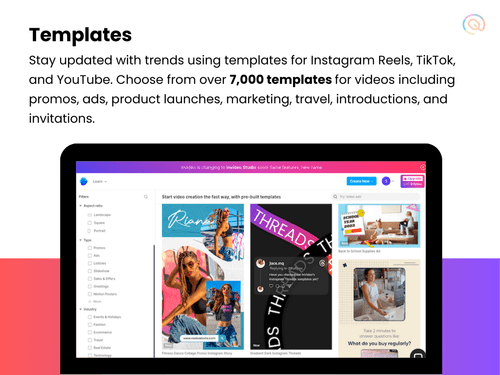
  • 5000+ Handcrafted Templates

  • Premium Templates

  • 3M+ Standard Media Library

  • AI script generation

  • Automated Text to Speech

  • Make videos in any language

  • Reseller Rights

  • Brand Presets

  • Chat Support

Unlimited
Starting at $60
    • Licenses

      Licenses
      Licenses
    • Monthly

      Monthly
      Monthly

Key Features

  • Video Sharing

  • 5000+ Handcrafted Templates

  • Premium Templates

  • 3M+ Standard Media Library

  • AI script generation

  • Automated Text to Speech

  • Make videos in any language

  • Reseller Rights

  • Brand Presets

  • Chat Support

Compare all Plans icon
×
Compare all plans

Not sure which plan is best for you? We'll help you

Invideo Studio Features

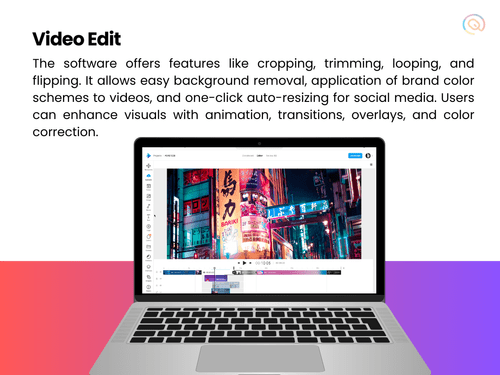
Basic Editing Tools / Timeline Editing

  • icon_check Trim, Crop & Resize
    Trimming adjusts the size of images and videos, cropping removes unnecessary sections, and resizing modifies dimensions to comply
  • icon_check Split & Merge
    Splitting involves dividing a video clip into two or more segments. Merging combines different parts of the same video clip.
  • icon_check Drag and Drop Functionality
    To edit a video by dragging and dropping elements and clips onto a timeline or storyboard.
  • icon_check Transition Effects
    Post-production tools used in video editing to connect one shot or scene to another.
  • icon_check Video Overlays
    A tool for layering multiple video clips or images on top of each other to create a single video.
  • icon_check Preview Functionality
    Viewing the final output of a video editing project before exporting the rendered file.
  • icon_check Speed Ramping and Speed Changing
    Speed ramping adjusts a clip's speed gradually, while speed changing makes a clip play faster or slower by altering the frame
  • icon_check Non-Linear Editing (NLE)
    A digital video editing method to edit a video or audio project without considering a linear timeline.
  • icon_check Video Masking
    Video Masking is selecting a specific piece of a video or use video overlays to hide, duplicate, reveal, or modify the footage.
  • icon_check Scene Cut Detection
    A scene cut detection tool automatically gets the cut points in a video at the point where clip is changing, based on sudden

Color Correction & Enhancement

  • icon_check Color Grading and Correction
    Color grading enhances the visual aesthetics of video by adjusting brightness, contrast, saturation, and hue, while color
  • icon_check Color Blending and Filters
    Color blending combines two images in video editing, while filters adjust aspects like color balance, brightness, contrast, and
  • icon_check Color LUTs
    Color LUTs or Look up Tables contain an arrays of numbers that contain values for color input and output, used to change the
  • icon_check Video Enhancer
    Video enhancers improve the quality of videos by fixing common issues like low light and blurry video.

Advanced Editing Tools

  • icon_check Auto Reframe
    Auto Reframe uses artificial intelligence to identify the main action in a video, keep it within the frame, and ensure important
  • icon_check Key Frames and Animations
    Keyframes in video editing signal when to start and end an animation or function. Transitioning a property or element between two
  • icon_check Background Removal
    A tool used in video editing to remove the background from a video and make it transparent.
  • icon_check Object Motion Tracking
    Object motion tracking is a video editing technique that detects and follows the movement of objects in a video or image sequence.
  • icon_check 3D Animations
    Using computer-generated imagery (CGI) to create and animate characters, objects, and props in 3D.
  • icon_check Video Stabilization
    A feature used to reduce shakiness and movement in video footage.
  • icon_check Screen / Camera Recording
    Recording screen videos, camera footages, audios, and images directly on the application.
  • icon_check Proxy Tools
    Creates lower-resolution copies of media files for faster editing and smoother playback.
  • icon_check Nested Timelines
    This feature is to combine multiple timelines within a single sequence for more organized and complex editing.
  • icon_check Duplicate Detection
    A tool that identifies and highlights duplicate clips to prevent redundancy in the video project.

Visual Effects & Motion Graphics

  • icon_check Content Library and Elements
    A central location for storing, organizing, and accessing digital content like images, videos, audio files, and text.
  • icon_check SFX
    Sound effects (SFX) are used with special effects to influence the mood and reactions of the audience in a video.
  • icon_check Green Screen and Chroma Key / Luma Key
    A special effects technique that lets you remove a chosen color from a video clip and replace it with another video or image.
  • icon_check VFX
    Visual effects (VFX) are computer-generated or manipulated imagery blended with live-action footage to enhance reality onscreen.

Audio Editing Tools

  • icon_check Voiceovers, Subtitles and Transcripts
    Voiceover is off-screen narration, subtitles are auto-generated text of the audio, and transcripts are written records of a
  • icon_check Audio Mixing
    A technique to combine individual tracks, audio, and sound effects by manipulating signal levels, frequency contents, dynamics,
  • icon_check Audio Waveforms
    Audio waveforms are two-dimensional graphs that represent how sound pressure changes in a video.
  • icon_check Silence Remover
    A tool to detect and remove silent parts or dead air in audio tracks
  • icon_check Audio Denoise
    A tools to remove unwanted background noise from an audio signal in video editing
  • icon_check Audio Stretching
    A tool to adjust the length of an audio clip to match the duration of a video without changing the pitch of the audio.
  • icon_check Auto Synchronization
    A tool to automatically adjust the volume of audio tracks to make one sound more prominent than another, highlight a narrative,
  • icon_check Beat Synchronization
    A tool that syncs video clips, footage, and other elements to the rhythm of music.

Image Editing Tools

  • icon_check Image Stabilization
    A specialized tool for correcting shaky footage to produce smooth and stable videos.
  • icon_check Noise Removal
    A tool to reduce unwanted visual noise to enhance image clarity.

File Storage and Management

  • icon_check File Rendering
    Combining raw elements into a final video file that can be played on a display.
  • icon_check 4K and HD Export
    4K and HD refer to the number of pixels that make up an image on a screen. 4K and HD export allows users to download
  • icon_check Automatic Project Backup
    The process of automatically saving video project files at a specified intervals.
  • icon_check Audio / Video Conversion
    A tool used to change the format of an audio/video file.

AI Video Creator / Editor

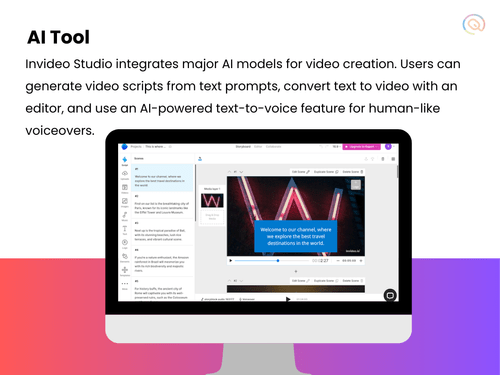
  • icon_check AI Text to Speech
    AI Text-to-Speech (TTS) is a technology that converts written text into spoken voice output using artificial intelligence.
  • icon_check AI Text-To-Video
    AI text-to-video technology involves converting text inputs into video content using artificial intelligence.
  • icon_check AI Co-Pilot Editing
    AI Co-Pilot Editing refers to the use of artificial intelligence to assist and enhance the video or audio editing process.
  • icon_check AI Voice Changer
    An AI Voice Changer is a technology that uses artificial intelligence to modify a person's voice in real-time or during
  • icon_check AI Auto Face Blur
    AI Auto Face Blur is a technology that uses artificial intelligence to automatically detect and blur faces in images and videos.
  • icon_check AI Speech / Dialogue Enhancer
    AI Speech/Dialogue Enhancer is a tool or technology that uses artificial intelligence to improve the quality of spoken audio.
  • icon_check AI Text-Based Editing
    The use of artificial intelligence to streamline and enhance the video editing process using text commands or text-based

Collaboration & Sharing

  • icon_check Multi Format Compatibility
    Importing/exporting, combining, and editing media files, such as videos, images, and audio in different formats.
  • icon_check Video Brand Kit
    A toolkit in video editing software to store branding elements, such as fonts, logos, color schemes, etc.
  • icon_check Real Time Collaboration
    Allowing multiple users to edit a video simultaneously, regardless of their location.
  • icon_check Social Media Integration
    Uploading video projects to social media directly from the video editing software.
  • icon_check Multi Device Compatibility
    Ability to use the video editing software on different devices and operating systems.
Invideo Studio Demo Video play icon

Get Invideo Studio Demo

Watch the demo video to explore key features, real workflows, and how the software fits your business needs.

Understand
Key Features
Personal
Demo Insights
Interactive
Demo Support

Invideo Studio Specifications

Supported Platforms
Ubuntu Ubuntu Windows Windows MacOS MacOS Linux Linux
Devices
Desktop Desktop
Deployment
Cloud-Based Cloud-Based
Suitable For
All Industries
Business Specific
All Businesses
Business Size
Small Business Startups Medium Business Enterprises
Customer Support
Email Communities
Language
English
Training Resources
Videos
AI Features
AI Integrated

Explore the Best Alternative Solutions Similar to Your Business Size and Needs

Invideo Studio Reviews

3.9

Out of 5

img

Overall Rating

Based on
10 Verified Reviews

Rating Breakdown

  • Features 3.9
  • Value for Money 3.9
  • Ease of Use 4
  • Customer Support 3.8

86% Recommend this Product

Add Review

Pros

  • "InVideo has made a huge difference in how I produce videos for my clients. Whether creating promotional content or corporate training videos."

    Yash Sep 1, 2024

Cons

  • "The software can be slow, particularly when handling large files. "

    Mrs BabitaSep 1, 2024

  • "The editor can be slow at times, which can interrupt the creation process. "

    Yash Sharma Sep 1, 2024

Jasman

Editor

Industry: SAAS User since: 1-2 years

4.1

Reviewed on: Jul 18, 2024

Techjockey Verified

“Transform Your Ideas into Videos with InVideo Studio”

Despite these challenges, I still love using InVideo Studio for creating engaging videos. It’s a wonderful platform for both beginners and experienced users who want to bring their stories to life through video

Pros

InVideo Studio is a fantastic tool that lets me turn my ideas into videos effortlessly. The platform offers a wide range of templates that are perfect for various themes. I enjoy adding animations and transitions to make my videos more lively. The easy interface makes it feel like I’m crafting something special each time.

Cons

I have noticed that some of the advanced features require a bit more digging to find. It took me a while to learn how to access them, which was a bit confusing. Also, occasionally, I face issues with the audio syncing properly, which can be frustrating.

Switched from Lightworks

Reason to switch

I switched from using Lightworks because it was too technical for my needs. InVideo Studio’s simplicity and fun features attracted me, making video creation enjoyable rather than stressful.

Nandkishor

Editor

Industry: Graphic Design User since: 1-2 years

3.8

Reviewed on: Aug 28, 2024

Techjockey Verified

“InVideo Studio: A Great Choice for Quick Video Edits”

InVideo Studio is a great platform for anyone looking to create videos quickly and efficiently. It has everything I need to put together professional-looking content for my audience without feeling overwhelmed.

Pros

InVideo Studio has been my go-to for making videos for social media. I love how I can start with a template and then personalize it to match my style. The stock footage and images are a huge help, allowing me to find what I need without any hassle. I appreciate the intuitive design that makes everything straightforward.

Cons

On the downside, I found that sometimes the rendering can be a little slow. It can be frustrating when you’re excited to share your video but have to wait. Additionally, I think the music library could use some updates with more recent hits.

Switched from Opus Clip

Reason to switch

I used to edit my videos using opus clip, but I found InVideo Studio’s templates much easier to work with. Opus clip felt a bit clunky, while InVideo Studio just flows better for me.

Geetu Sharma

Editor

Industry: Graphic Design User since: 1-2 years

4.1

Reviewed on: Jul 24, 2024

Techjockey Verified

“Create Stunning Videos Quickly with InVideo Studio”

Overall, InVideo Studio is a fantastic tool for anyone who needs to produce videos quickly and easily. Whether you’re a beginner or a pro, it has tools that cater to both levels. I find it perfect for creating videos for my business and personal projects.

Pros

Using InVideo Studio has changed the way I create videos. I love the ability to add text overlays, animations, and images quickly. The preview feature lets me see my edits in real-time, which helps a lot when making changes. Plus, the support team is really helpful and responds fast to any questions I have.

Cons

I did run into some issues when trying to export videos in high resolution. Sometimes the process takes longer than expected, and I have to wait a bit before my video is ready. I also wish there were more features for advanced editing.

Switched from WeVideo

Reason to switch

I switched to InVideo Studio from Camtasia because I needed something less complicated. Camtasia had too many features that I never used, and I wanted something straightforward.

See All Invideo Studio Reviews

Compare Invideo Studio With other Video Editing Software

Products
Ratings
Pricing
Device Supported
Deployment
Supported Platforms
  • img

    Invideo Studio

  • 3.9

  • Price On Request

  • Desktop

    Mobile

  • Web based

    On Premises

  • Windows

    Mac OS

  • img

    Final Cut Pro

  • 4.3

  • Price On Request

  • Desktop

    Mobile

  • Web based

    On Premises

  • Windows

    Mac OS

  • img

    Adobe Premiere Pro

  • 4.2

  • Price On Request

  • Desktop

    Mobile

  • Web based

    On Premises

  • Windows

    Mac OS

  • img

    Flixier

  • 4.1

  • ₹ 984

  • Desktop

    Mobile

  • Web based

    On Premises

  • Windows

    Mac OS

  • img

    DaVinci Resolve

  • 4.3

  • ₹ 29980

  • Desktop

    Mobile

  • Web based

    On Premises

  • Windows

    Mac OS

  • img

    InShot

  • 4.1

  • Price On Request

  • Desktop

    Mobile

  • Web based

    On Premises

  • Windows

    Mac OS

  • img

    KineMaster

  • 4.2

  • Price On Request

  • Desktop

    Mobile

  • Web based

    On Premises

  • Windows

    Mac OS

  • img

    FlexClip

  • 4.7

  • ₹ 1729

  • Desktop

    Mobile

  • Web based

    On Premises

  • Windows

    Mac OS

(0) Product(s) selected

Invideo Studio Alternatives

See All Invideo Studio Alternatives

Available

Price on Request

Starting Price:

$15 /Month

Starting Price:

$30 /Month

Starting Price:

$50 /Year

Starting Price:

$15 /Month

Starting Price:

$13 /Month

Articles for Invideo Studio

See All Related Articles

Can I use InVideo studio for free?

Yes, you can use InVideo for free. However, the free version contains a watermark.

Is InVideo studio available for PC?

Yes, InVideo is available for PC/ Windows devices.

Can I use InVideo studio on mobile?

Yes, the InVideo application can be used on mobile devices.

What is InVideo used for?

InVideo is used mostly for creating social media content.

Does Invideo have an app?

Yes, InVideo has an app for mobile devices, also known as Filmr

Is InVideo free to export?

Yes, the free version of InVideo allows you to export videos in your desired format.

How much does InVideo costs?

Invideo Studio starting price for a business plan is $30 per month & the ultimate plan starts at $60 per month.

20,000+ Software Listed

Best Price Guranteed

Free Expert Consultation

2M+ Happy Customers

Terms and Condtions

close

Users with registered businesses can purchase goods from merchants on the platform to satisfy their business needs. Users are not permitted to utilize any products acquired through the platform for resale, advertising, business, or further distribution.

For each purchase made, users will receive a Tax Invoice (or 'GST invoice') that includes specific details such as:

  • the GSTIN of the user associated with their registered business, and

  • the specified Entity Name for their business.

It should be noted that not all products are eligible for GST Invoice. Only the products displayed by participating sellers with the 'GST-based Invoice Available' callout on the product description page would qualify.

Certain goods and services are not eligible to get a GST Invoice, including items with VAS, i.e., Value Added Services (e.g., Total Mobile Protection/Assured Buyback) and those involving an exchange offer at the time of purchase.

Users must ensure the accuracy of the GSTIN, and business entity name provided for the GST Invoice. Requests for corrections into GST Invoice would not be accommodated by Techjockey.com or any Seller, and any issues arising from user-provided information are the sole responsibility of users.

Techjockey.com is not liable for the GST Invoice or any associated input tax credit. To efficiently claim an input tax credit, users should select the registered place of business address as per the GST authority's data and follow the provisions of the GST Act and rules.

To claim an input tax credit, the delivery and billing addresses must match. Furthermore, input tax credits will not be granted if the delivery address and GSTIN on the invoice are from different states. In case of incorrect GST details provided during the order placement, the order will be canceled automatically.