linkedin
ScreenConnect Remote Access logo
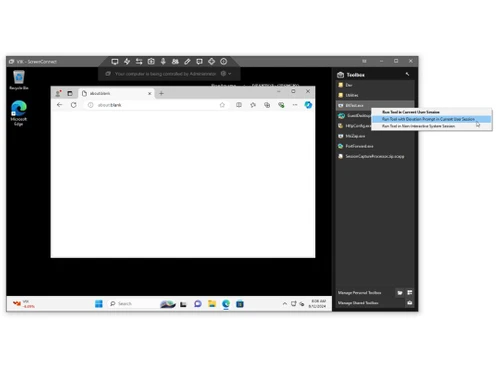
play ConnectWise ScreenConnect Demo: Toolbar Overview
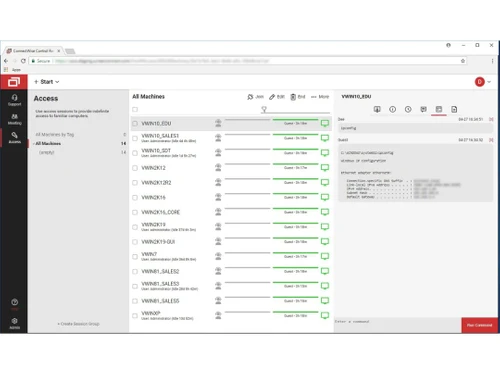
screenconnect-sharing
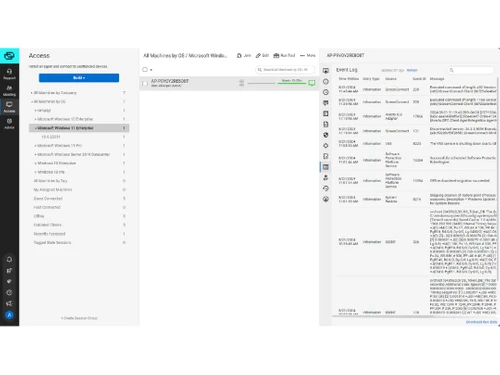
screenconnect-machines

ScreenConnect Remote Access

Brand: ConnectWise

  • 4

  • 3 Ratings

ConnectWise Control software is designed for quick and efficient remote access, support, and meeting to meet the requirements of a modern technical assistance team. The software enables technicians to be more productive at their work by utilizing remote support and access to remote PCs for updates and issue resolution. The tool is usually used by IT departments in an office setting to help the em...

See More

Have you used ScreenConnect Remote Access before?

Share your insights for better experience

Add a Review
Starting Price
$39

View plans

100% Genuine
Products
Best Price
Guaranteed
Safe & Secure
Payment
  • Description

  • Pricing

  • Features

  • Specification

  • Review

  • Compare

  • Alternatives

  • FAQ

Starting at $39

ScreenConnect Remote Access Software Overview

What is ConnectWise Control?

ConnectWise Control software is designed for quick and efficient remote access, support, and meeting to meet the requirements of a modern technical assistance team. The software enables technicians to be more productive at their work by utilizing remote support and access to remote PCs for updates and issue resolution. The tool is usually used by IT departments in an office setting to help the employees working in remote locations with their systems. It can be also used for conducting online seminars and giving online presentation for remote meetings. 

ConnectWise Control offers a collaborative solution which focuses on teams, rather than an individual. It has a wide range of collaboration features that assists agents to interact and work simultaneously without interfering with each other. 

Why choose ConnectWise Control?

ConnectWise Control enables companies to provide real-time, high quality customer service with an assured unobstructed communication chain between your IT teams and clients. The solution’s customizable interface facilitates companies to bring their brand as the focus. Companies can change everything from brand, logos, menu icons, etc. and integrate it to their website. The software also helps in providing direct access to customer database along with insightful reporting to formulate easier solutions for recurring system issues. 

What are the features offered by ConnectWise Control?

Here are some key features offered by ConnectWise Control:

  1. Multiple agent attendance
  2. Multiple simultaneous sessions
  3. Browser extension 
  4. Remote access
  5. Remote support 
  6. Customization and branding 
  7. Real-time bidirectional live transfer during remote access session

What is the price of ConnectWise Control?

ConnectWise Control pricing varies based on the customer requirements for their daily workflow. Please request a call for further inquiries regarding ConnectWise Control download.

Read more

ConnectWise Company Details

Founded Year:  1982

Since 1982, we have identified trends, engaged with industry leaders, and listened to businesses in the IT community. Whether you're an MSP, MSP+, VAR, or OED, ConnectWise offers everything you need to automate, manage, grow, and secure your business and clients. All under one roof.

Director/Founders Arnie Bellini, David Bellini
Company Size 501-1000 Employees

ScreenConnect Remote Access Pricing & Plans

Monthly subscription
Key Features
  • Minimum 25 agents
  • Advanced Machine Management
  • Backstage
  • Bridge Connectivity
Starting at $39
    • Licenses

      Licenses
      Licenses
    • Monthly

      Monthly
      Monthly

Key Features

  • Minimum 25 agents

  • Advanced Machine Management

  • Backstage

  • Bridge Connectivity

ScreenConnect Remote Access Features

Connection & Accessibility

  • icon_check Unattended Access
    Securely access devices without user intervention for maintenance or updates.
  • icon_check Cross-Platform Compatibility
    Seamless access across Windows, macOS, Linux, iOS, and Android devices.
  • icon_check Browser-Based Access
    Use remote desktop features directly via a web browser without additional software.
  • icon_check Mobile Access Support
    Remotely control systems using smartphones or tablets anytime, anywhere.
  • icon_check Multi-Window Control
    Manage multiple application windows on the remote device in one session.
  • icon_check Clipboard Syncing
    Copy and paste text or files between local and remote devices seamlessly.
  • icon_check Persistent Session
    Automatically reconnect to maintain active sessions during interruptions.
  • icon_check Multi-Monitor Navigation
    View and control multiple monitors on the remote system efficiently.
  • icon_check Remote printing
    Print files from a remote device to a local printer instantly.

Session Management & Control

  • icon_check Multi Session Support
    Handle multiple remote sessions simultaneously with ease.
  • icon_check Session Handover
    Transfer active sessions to another technician without disruptions.
  • icon_check Queue & Schedule Sessions
    Organize and schedule remote sessions for efficient workflow.
  • icon_check Session Timeout & Auto-Lock
    Automatically end or lock sessions after a period of inactivity.
  • icon_check Remote Reboot Options
    Reboot devices remotely, including into Safe Mode if needed.
  • icon_check Session Recording & Playback
    Record sessions for review, training, or compliance purposes.
  • icon_check Real-Time Control Customization
    Adjust settings like resolution and bandwidth during sessions.
  • icon_check Blank Screen Mode
    Blackout the remote screen to ensure privacy during access.

System Management & Support

  • icon_check Two-Way File Transfer
    Send and receive files securely between local and remote devices.
  • icon_check Bulk File Transfer
    Transfer multiple files or folders in a single operation.
  • icon_check Automated System Diagnostics
    Run diagnostics to identify and resolve issues remotely.
  • icon_check Remote Command Prompt Access
    Access and execute commands in the terminal remotely.
  • icon_check Session Note Taking
    Record notes during sessions for follow-ups or documentation.
  • icon_check File Sync & Auto Update
    Synchronize and update files automatically across devices.
  • icon_check Remote Task Manager
    Manage processes and applications on the remote device effectively.
  • icon_check System Health Monitoring
    Track CPU, memory, and disk usage in real-time during sessions.
  • icon_check Direct File Access Permissions
    Control access to specific files during remote sessions.

Collaboration & Communication

  • icon_check Screen Sharing with Control
    Share and allow control of screens for collaborative tasks.
  • icon_check User Grouping & Management
    Organize users into groups for better session management.
  • icon_check Two-Way Desktop Sharing
    Share and receive desktop control for joint troubleshooting.
  • icon_check In-Session Chat
    Communicate with users during remote sessions via real-time chat.
  • icon_check Video Conferencing
    Engage in video calls for collaboration or troubleshooting.
  • icon_check Annotation & Drawing Tools
    Highlight or annotate on the screen to guide users effectively.
  • icon_check Multiple Technician Access
    Allow multiple technicians to join and manage a session.
  • icon_check Shared Toolbox
    Share diagnostic tools and resources among team members.

Security & Compliance

  • icon_check Audit Logs
    Record detailed user and system activity logs for compliance and tracking.
  • icon_check Multi-Factor Authentication (MFA)
    Add an extra layer of security with multi-factor verification.
  • icon_check End-to-End Encryption
    Secure data transmission with 256-bit AES encryption.
  • icon_check Role-Based Access Control (RBAC)
    Restrict permissions based on user roles and responsibilities.
  • icon_check Dynamic IP Whitelisting
    Limit access to predefined IP addresses for enhanced security.
  • icon_check GDPR/CCPA Compliance
    Ensure data privacy compliance with GDPR/CCPA standards.
  • icon_check HIPAA Compliance
    Adhere to healthcare data protection regulations.

Customization & Personalization

  • icon_check Customizable Branding
    Add company logos and themes for a professional interface.
  • icon_check Customizable Toolbars
    Tailor toolbars to suit specific workflows and preferences.
  • icon_check Flexible UI Layout
    Adjust interface elements for improved usability and efficiency.
  • icon_check Session Scripting
    Automate repetitive tasks using custom scripts during sessions.
  • icon_check Custom Keyboard Mapping
    Create custom shortcuts for efficient remote operations.
  • icon_check Language Localization
    Support multiple languages for global users.

Automation & Workflow

  • icon_check Task Automation
    Automate repetitive processes during or after remote sessions.
  • icon_check Workflow Automation
    Simplify operations by automating workflows across devices.
  • icon_check Scheduled Tasks
    Set specific tasks to run at predefined times for efficiency.
  • icon_check Remote Wake-on-LAN
    Power on devices remotely from a low-power or off state.

Analytics & Reporting

  • icon_check Customizable Dashboards
    Personalize dashboards for quick access to key metrics.
  • icon_check Detailed Session Reports
    Generate session summaries with time and activity logs.
  • icon_check User Activity Reports
    Track login history and session activities for all users.
  • icon_check Performance Metrics
    Monitor connection speed, uptime, and session quality metrics.
  • icon_check Error Logs
    Record system errors for troubleshooting and resolution.

Integrations

  • icon_check Third Party Integration
    Enable compatibility with existing software ecosystems.
  • icon_check Ticket Management
    Integrate with helpdesk software for seamless support workflows.
  • icon_check API Integration
    Connect with third-party tools via API for enhanced functionality.
  • icon_check Patch Management
    Monitor and deploy software updates to ensure system security.

Administrative Features

  • icon_check Device Management
    Centrally manage connected devices across an organization.
  • icon_check User Access Management
    Control user roles and permissions
  • icon_check Access Logs
    A record of user access events, detailing who accessed the system
  • icon_check Admin Console
    Oversee user activity and session management from a central console.
  • icon_check Centralized Connection Management
    Manage all remote connections from one interface.
  • icon_check Patch Management
    Monitor and deploy software updates to ensure system security.
ScreenConnect Remote Access Demo Video play icon

Get ScreenConnect Remote Access Demo

Watch the demo video to explore key features, real workflows, and how the software fits your business needs.

Understand
Key Features
Personal
Demo Insights
Interactive
Demo Support

ScreenConnect Remote Access Specifications

Supported Platforms
Ubuntu Ubuntu Windows Windows MacOS MacOS Linux Linux
Devices
Desktop Desktop
Deployment
Cloud-Based Cloud-Based
Suitable For
All Industries
Business Specific
All Businesses
Business Size
Small Business Startups Medium Business Enterprises
Customer Support
Phone Email Communities
Language
English
Training Resources
Videos

Explore the Best Alternative Solutions Similar to Your Business Size and Needs

ScreenConnect Remote Access Review

4

Out of 5

img

Overall Rating

Based on
3 Verified Ratings

Rating Breakdown

  • Features 4.1
  • Value for Money 3.6
  • Ease of Use 4
  • Customer Support 4.1

96% Recommend this Product

Add Review

Techjockey Trusted Reviews from Verified Users

No reviews are currently available for ScreenConnect Remote Access. Discover similar Remote Desktop Software reviews

  • AnyDesk

    4.6

    Whats great - Lightning-fast remote desktop connections, allowing you to access your computer from anywhere with minimal delay. read more

  • TeamViewer

    4.4

    Whats great - It is extremely easy to use and fast. It allows connecting to a computer from any device with a simple ID and password. It in... read more

  • Parsec

    4.2

    Whats great - Lightweight, runs smoothly even on weak devices. read more

Compare ScreenConnect Remote Access With other Remote Desktop Software

Products
Ratings
Pricing
Device Supported
Deployment
Supported Platforms
  • img

    ScreenConnect Remote Access

  • 4

  • Price On Request

  • Desktop

    Mobile

  • Web based

    On Premises

  • Windows

    Mac OS

  • img

    AnyDesk

  • 4.6

  • ₹ 14580

  • Desktop

    Mobile

  • Web based

    On Premises

  • Windows

    Mac OS

  • img

    TeamViewer

  • 4.3

  • ₹ 8628

  • Desktop

    Mobile

  • Web based

    On Premises

  • Windows

    Mac OS

  • img

    UltraViewer

  • 4.2

  • Price On Request

  • Desktop

    Mobile

  • Web based

    On Premises

  • Windows

    Mac OS

  • img

    RustDesk

  • 4.3

  • Price On Request

  • Desktop

    Mobile

  • Web based

    On Premises

  • Windows

    Mac OS

  • img

    Parsec

  • 4.2

  • Price On Request

  • Desktop

    Mobile

  • Web based

    On Premises

  • Windows

    Mac OS

  • img

    Iperius Remote

  • 4.1

  • Price On Request

  • Desktop

    Mobile

  • Web based

    On Premises

  • Windows

    Mac OS

  • img

    Impero Connect

  • 4.2

  • Price On Request

  • Desktop

    Mobile

  • Web based

    On Premises

  • Windows

    Mac OS

  • img

    NoMachine

  • 4.1

  • Price On Request

  • Desktop

    Mobile

  • Web based

    On Premises

  • Windows

    Mac OS

(0) Product(s) selected

ScreenConnect Remote Access Alternatives

See All ScreenConnect Remote Access Alternatives

Starting Price:

$10 /Month

Starting Price:

$45 /Year

Starting Price:

£3 /Month

Available

Price on Request

Starting Price:

$22

Starting Price:

$33 /Device/Year
Articles for ScreenConnect Remote Access

See All Related Articles

Does ConnectWise Control require external browser plugins for access?

No, ConnectWise Control does not need any plugin for getting access to any remote device.

How to get started with ConnectWise Control?

ConnectWise Control offers an educational and training module for users to enhance their knowledge about the solution. Plus, you can get the software demo with Techjockey.

Can I integrate ConnectWise Control with my office network?

Yes, ConnectWise Control can be easily integrated with your office network through API integration.

Where does ConnectWise Control host all the data?

ConnectWise Control has a self-cloud hosting service for data storage.

Can I get a demo for ConnectWise Control?

Yes, ConnectWise Control is available for a demo at Techjockey.

20,000+ Software Listed

Best Price Guranteed

Free Expert Consultation

2M+ Happy Customers

Terms and Condtions

close

Users with registered businesses can purchase goods from merchants on the platform to satisfy their business needs. Users are not permitted to utilize any products acquired through the platform for resale, advertising, business, or further distribution.

For each purchase made, users will receive a Tax Invoice (or 'GST invoice') that includes specific details such as:

  • the GSTIN of the user associated with their registered business, and

  • the specified Entity Name for their business.

It should be noted that not all products are eligible for GST Invoice. Only the products displayed by participating sellers with the 'GST-based Invoice Available' callout on the product description page would qualify.

Certain goods and services are not eligible to get a GST Invoice, including items with VAS, i.e., Value Added Services (e.g., Total Mobile Protection/Assured Buyback) and those involving an exchange offer at the time of purchase.

Users must ensure the accuracy of the GSTIN, and business entity name provided for the GST Invoice. Requests for corrections into GST Invoice would not be accommodated by Techjockey.com or any Seller, and any issues arising from user-provided information are the sole responsibility of users.

Techjockey.com is not liable for the GST Invoice or any associated input tax credit. To efficiently claim an input tax credit, users should select the registered place of business address as per the GST authority's data and follow the provisions of the GST Act and rules.

To claim an input tax credit, the delivery and billing addresses must match. Furthermore, input tax credits will not be granted if the delivery address and GSTIN on the invoice are from different states. In case of incorrect GST details provided during the order placement, the order will be canceled automatically.