linkedin
Clickup logo
play What is ClickUp?
clickup features
clickup project management tool

Clickup

Brand: ClickUp

  • 4.2

  • 12 Ratings & 12 Reviews

ClickUp is one of the best task management software that enables both managers and employees to create tasks and assign them to each other for reporting efficiently.

See More

Have you used Clickup before?

Share your insights for better experience

Add a Review
Starting Price
$10

View plans

100% Genuine
Products
Best Price
Guaranteed
Safe & Secure
Payment
  • Description

  • Pricing

  • Features

  • Specification

  • Review

  • Compare

  • Alternatives

  • FAQ

  • Questions

Starting at $10

Clickup Software Overview

What is ClickUp?

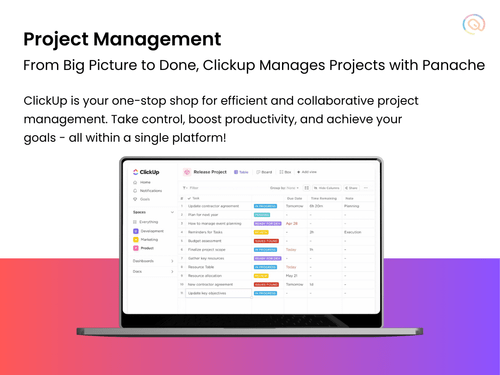
ClickUp is a cloud-based project management system that helps teams collaborate, plan, and track the progress of their tasks. It is an affordable and easy-to-use tool, with hundreds of customizable features.

From collaboration to reporting, the ClickUp app combines all the features required for managing projects across different industries. The workflow management feature of ClickUp project management software also frees your team from redundant routine tasks.

Why Choose ClickUp Project Management Software?

ClickUp is the right choice for teams seeking diverse project management software that can easily accumulate different teams. Here are some of the reasons why ClickUp is a top choice for users seeking a user-friendly project management tool:

  • Knowledge Management: ClickUp tool goes beyond traditional project management by integrating knowledge management tools into its platform. Teams can create and manage documentation with ease, using the built-in docs and wikis.
  • Resource Management: It offers various resource management features. The platform includes time-tracking capabilities, enabling teams to monitor the time spent on tasks and projects accurately.
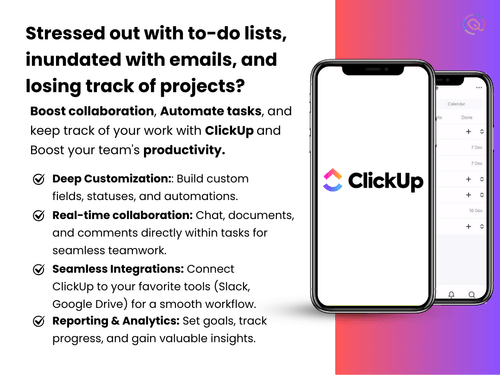
  • Collaboration: ClickUp’s chat, inbox, and document collaboration features enhance communication, providing teams with the tools they need to stay connected and informed.
  • Workflows: The automation feature in ClickUp software helps teams reduce manual work by automating repetitive tasks, freeing up time for more strategic activities.

Who Uses ClickUp?

ClickUp is used by different teams and various industries seeking a solution to streamline their project management operations, including:

  • Product Development: ClickUp task management tool empowers product development teams to accelerate innovation, leading to faster and more effective product launches.
  • IT: ClickUp also enhances IT operations by helping teams manage projects, track tasks, and ensure that all operations run smoothly.
  • Marketing: Marketing teams can drive better outcomes through ClickUp’s collaborative tools, which support strategy development and execution.
  • Human Resources: HR teams can use ClickUp for Windows to manage recruitment, onboarding, employee engagement, and other critical HR functions.
  • Enterprise: For large enterprises, ClickUp offers strategic project planning tools that support complex project management needs.
  • Startup: ClickUp software is an ideal choice for startups looking to grow quickly and efficiently. The platform offers a diverse range of tools at budget-friendly pricing plans.

ClickUp Pricing

ClickUp pricing starts from $10 for an unlimited plan and $19 for a business plan.

For more details regarding clickup price and plans, please request a call. Our sales team will get in touch with you soon.

Read more

ClickUp Company Details

Founded Year:  2017

ClickUp offers a customizable workplace productivity platform that serves all departments across an organization.

Director/Founders Alex Yurkowski, Zeb Evans
Company Size 1000+ Employees

Clickup Pricing & Plans

Unlimited (Best for small teams)
Starting at $10
    • Users

      Users
      Users
    • Monthly

      Monthly
      Monthly

Key Features

  • Unlimited Storage

  • Unlimited Integrations

  • Unlimited Dashboards

  • Guests with Permissions

  • Unlimited Gantt Charts

  • Unlimited Custom Fields

  • Column Calculations

Business (Best for mid-sized teams)
Starting at $19
    • Users

      Users
      Users
    • Monthly

      Monthly
      Monthly

Key Features

  • Everything in Unlimited

  • Google SSO

  • Unlimited Teams

  • Custom Exporting

  • Workspace Connected Search

  • Advanced Public Sharing

  • Advanced Automations

  • Advanced Dashboard Features

Compare all Plans icon
×
Compare all plans

Not sure which plan is best for you? We'll help you

Clickup Features

Core Functionalities

  • icon_check Issue Management
    Identifies, tracks, and resolves problems or issues that arise during project execution
  • icon_check Workflow Management
    Manages and automates the flow of tasks and processes, ensuring that the right people or systems handle tasks at the right time?
  • icon_check Resource Management
    Allocate and manage team members effectively.
  • icon_check Risk Management
    Proactively identify and address potential project risks.
  • icon_check Task Management
    Central to all project management software, allowing users to create, assign, prioritize, and track tasks
  • icon_check Backlog Management
    Manage the product and sprint backlogs with prioritized tasks
  • icon_check Pipeline Management
    Tracks the flow of tasks, processes, or projects through various stages to ensure smooth progression.
  • icon_check Sprint Management
    Plan, track, and manage sprints (short, time-boxed iterations)
  • icon_check Workforce Management
    Involves managing and optimizing team member workloads, schedules, and productivity?
  • icon_check Incident Management
    Manages unforeseen incidents or disruptions within a project, often found in industries requiring high reliability, such as IT or

Task & Workflow Management

  • icon_check Workflow Automation
    Design and automate workflows to enhance efficiency and ensure consistent task execution.
  • icon_check Recurring Tasks
    Schedule tasks to repeat at regular intervals to streamline ongoing project activities.
  • icon_check Task Creation & Assignment
    Create, assign, and manage tasks.
  • icon_check Task Prioritization
    Assign priority levels to tasks to ensure the most critical activities are addressed first.
  • icon_check Sub-Task Creation
    Break down complex tasks into smaller, manageable sub-tasks for better tracking and execution.
  • icon_check Task Dependencies
    Define and monitor task dependencies to manage the sequence and impact of task completion.
  • icon_check Notifications/Reminders
    Set up automated alerts and reminders to keep team members informed about task deadlines and updates.
  • icon_check Automated Task Assignment
    Automatically assigns tasks to team members based on workload, availability, and skill sets, helping to distribute work evenly as

Task Views

  • icon_check Gantt Chart
    Provides a visual timeline of the project with their durations and dependencies.
  • icon_check Kanban Boards
    Tasks are represented as cards that move across the columns.
  • icon_check Task List
    A simple list view of all tasks, including details such as due dates, assignees, and statuses.
  • icon_check Calendar View
    Displays tasks and deadlines on a calendar.
  • icon_check Timeline View
    Provides an overview of tasks and milestones over time.
  • icon_check Spreadsheet View
    Tasks are displayed in a table format similar to a spreadsheet.
  • icon_check Mind Map
    Visual representation of tasks and ideas branching out from a central concept.

Progress & Performance Tracking

  • icon_check Time Tracking
    Record the time spent on tasks for better project budgeting.
  • icon_check Milestone Tracking
    Set and track key project benchmarks.
  • icon_check Team Capacity Tracking
    Shows the distribution of tasks among team members for balancing workload and avoiding overburdening

Resource & Budget Management

  • icon_check Automated Resource Allocation
    Automatically adjusts resource allocation, such as server capacity, storage, or bandwidth, based on current project needs during
  • icon_check Budget Planning
    Set a spending plan for your project based on data insights.
  • icon_check Dynamic Budgeting
    Tracks project expenses and scales budget management features dynamically based on the project's financial requirements.
  • icon_check Risk Scoring System
    Quantify and score potential project risks based on severity.
  • icon_check Workload Distribution
    Distributes tasks and processes across team members or systems to prevent overloading any resource, ensuring balanced workloads
  • icon_check Auto Scaling
    Dynamically scale resources (e.g., team size, server resources) based on project requirements.

Collaboration & Communication

  • icon_check Version Control
    Track changes made to documents and files.
  • icon_check Real-Time Collaboration
    Work simultaneously on tasks, leave comments, and share feedback.
  • icon_check Integrated Chat & Messaging
    Real-time communication with team members.
  • icon_check File Sharing & Document Collaboration
    Upload, share, and edit documents.

Access Control & Security

  • icon_check Compliance Tracking
    Ensure adherence to relevant data and security compliance (e.g., GDPR, CCPA).
  • icon_check Activity Logs
    Track user activity within the project management software
  • icon_check Data Backup and Disaster Recovery
    Ensure data security with regular backups and recovery plans.
  • icon_check User Access Management
    Control access to project information based on user roles.
  • icon_check Multi-Factor Authentication (MFA)
    Enhance login security through MFA.

Customization

  • icon_check Templates
    Use pre-defined project and timeline structures to save time.
  • icon_check Custom Fields
    Add specific data fields to track unique project information.
  • icon_check Task Customization
    Modify tasks to include custom fields, tags, and properties to fit specific project needs.
  • icon_check Custom Layouts
    Design the software interface to fit your workflow.
  • icon_check Custom Views
    Create personalized views of project data.

Integrations

  • icon_check API Integration
    Allow for custom integrations through APIs
  • icon_check Communication and Collaboration Tools
    Integrate with various collaboration tools to streamline real-time communication and collaboration within project workflows.
  • icon_check File Storage and Sharing
    Connect cloud storage solutions to enable seamless file sharing and document management within projects.
  • icon_check Issue Tracking Tools
    Link issue tracking software to manage and resolve bugs and issues alongside your project management processes.
  • icon_check Automation Tools
    Use automation platforms to create workflows that automatically handle repetitive tasks across multiple apps.
  • icon_check AI-Based Integrations
    Use AI for predictive analysis and workflow suggestions.
  • icon_check Time Tracking Tools
    Integrate time tracking tools to monitor work hours and resource allocation directly in your project management system.
  • icon_check CRM Integration
    Sync with CRM systems to align customer relationships and sales data with project tasks and deliverables.
  • icon_check ERP Integration
    Connect ERP systems to unify project management with broader business operations, including finance, HR, and procurement.
  • icon_check Third Party Integrations
    Connect your system to external applications such as CRMs, payment gateways, and analytics tools for seamless data exchange.

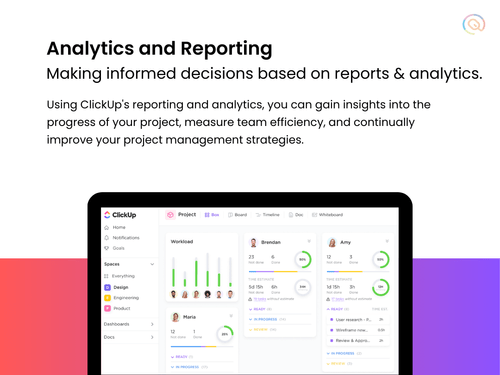
Reporting & Analytics

  • icon_check Dashboards
    Interactive dashboards that can be customized for different user roles.
  • icon_check Benchmarking
    Compare project performance against industry standards or internal benchmarks.
  • icon_check Automated Reports
    Scheduling and automatic generation of regular reports. Email notifications with report summaries.
  • icon_check Project Progress Reports
    Track progress against the baseline plan, identify deviations in schedule or budget.
  • icon_check Resource Reports
    Allocation and utilization of resources (people, equipment, materials).
  • icon_check Risk Reports
    Identify, assess, and propose mitigation strategies for potential project risks.
  • icon_check Workload Reports
    Analyze workload distribution among team members, identify potential imbalances.
  • icon_check Timesheet Reports
    Track time spent on tasks by team members, assess project efficiency and billing accuracy.
  • icon_check Sprint Reports
    Track progress within development sprints.
  • icon_check Real-Time Reporting
    Live dashboards that update as data changes.
  • icon_check Report Customization
    Ability to create and customize reports based on specific project needs.
  • icon_check Burndown & Burnup Charts
    Track progress towards sprint goals to manage progress and respond accordingly.
  • icon_check Bottleneck Reports
    Identification of task dependencies and potential bottlenecks.
  • icon_check Predictive Analytics
    Forecasting tools to predict future project outcomes based on historical data.
Clickup Demo Video play icon

Get Clickup Demo

Watch the demo video to explore key features, real workflows, and how the software fits your business needs.

Understand
Key Features
Personal
Demo Insights
Interactive
Demo Support

Clickup Specifications

Supported Platforms
Windows Windows iOS iOS Android Android MacOS MacOS
Devices
Desktop Desktop Mobile Mobile Tablet Tablet iPad iPad
Deployment
Cloud-Based Cloud-Based
Suitable For
All Industries
Business Specific
All Businesses
Business Size
Small Business Startups Medium Business Enterprises SMBs SMEs
Customer Support
Email Live Chat Communities
Language
English
Integration
API Integration
Training Resources
Videos
AI Features
AI Integrated
Compliance Regulation
CCPA

Clickup Integrations

Slack

4.6

Github

4.5

Loom

4.4

n8n

4.3

See More

Explore the Best Alternative Solutions Similar to Your Business Size and Needs

Small Business

Designed for startups and growing businesses

Jira

4.4

Asana

4.5

Notion

4.3

See More

Medium Business

Built for business growth and flexibility

TrackPM

4.6

Hive

4.0

Swatle

3.9

See More

Clickup Reviews

4.2

Out of 5

img

Overall Rating

Based on
12 Verified Reviews

Rating Breakdown

  • Features 4.2
  • Value for Money 4.2
  • Ease of Use 4.3
  • Customer Support 4.2

89% Recommend this Product

Add Review

Pros

  • "Easy drag and drop feature as once the task is completed you can move it to the next stage which helps you to keep track on your task accomplished and pending work you need to do."

    Arpit GuptaAug 31, 2023

  • "I love the design and the usability of the software and I am really looking forward to using this product."

    Nikita Pandey Feb 28, 2022

  • "I especially love the way you can customize the look and feel of your projects and boards. I have recommended ClickUp to many of my colleagues and friends."

    Siddharth NarayanaFeb 28, 2022

Cons

  • "The speed could be better, especially when searching for tasks, and the mobile version still lacks some features found on the desktop."

    Yash Sharma Jul 3, 2024

  • "Honestly, the only thing I wish for is more options for backup and restore. "

    Vishal Pawar Jul 3, 2024

  • "Earlier they had a feature where you could assign one task to multiple people but now it is restricted to one task per person."


    Arpit GuptaAug 31, 2023

Clickup Video Reviews

youtubeVideoId

4.4

“ClickUp Review Tour Is it still the best project management software”

Review by: Tara Wagner Coaching

youtubeVideoId

4.3

“THIS tool runs my life”

Review by: Primal Video

Yash Sharma

Manager

Industry: Marketing and Advertising User since: 2+ years

3.6

Reviewed on: Jul 3, 2024

Techjockey Verified

“ClickUp has helped our team stay organized and improve”

Using ClickUp has made our project management much more organized.

Pros

ClickUp is great for helping us stay organized. The platform’s customization options let us set it up exactly how we need it. The different task views, like the Board and Calendar, give us flexibility in managing our projects.

Cons

The speed could be better, especially when searching for tasks, and the mobile version still lacks some features found on the desktop.

Reason to switch

We moved to ClickUp because we needed a software that could handle all our project management needs in one place, and it hasn’t disappointed.

Vishal Pawar

Accountant

Industry: Accounting User since: 6-12 months

3.5

Reviewed on: Jul 3, 2024

Techjockey Verified

“ClickUp is the best software for keeping our team organized”

I’ve been using ClickUp for a few years now, and it’s been a reliable tool for managing both simple and detailed projects.

Pros

The built-in features for assigning tasks and tracking progress make it easy to know who’s doing what. Further, the pre-designed templates have been really helpful in getting projects started quickly.

Cons

Honestly, the only thing I wish for is more options for backup and restore.

Switched from Asana

Reason to switch

We chose ClickUp because it offered the versatility and features, we needed to manage multiple projects.

Faizullah Dilawer

Project Manager

Industry: Professional Services User since: 1-2 years

3.2

Reviewed on: Jun 19, 2024

Techjockey Verified

“ClickUp has truly changed the way we manage projects earlier”

I've been using ClickUp for a while, and it has made managing projects much easier. The platform offers different views like Board, List, and Gantt, so you can approach tasks in the way that suits you best.

Pros

ClickUp has been a major upgrade for us. The interface is very simple to use. One of the things we love most is the customization feature, from task views to notifications. The frequent updates, which often include new features, are a big advantage.

Cons

No issues

Switched from Trello

Reason to switch

We required software that could handle everything from task management to team collaboration, and ClickUp provided all of that within a single platform.

See All Clickup Reviews

Compare Clickup With other Project Management Software

Products
Ratings
Pricing
Device Supported
Deployment
Supported Platforms
  • img

    Clickup

  • 4.2

  • Price On Request

  • Desktop

    Mobile

  • Web based

    On Premises

  • Windows

    Mac OS

  • img

    Jira

  • 4.4

  • Price On Request

  • Desktop

    Mobile

  • Web based

    On Premises

  • Windows

    Mac OS

  • img

    TrackPM

  • 4.6

  • Price On Request

  • Desktop

    Mobile

  • Web based

    On Premises

  • Windows

    Mac OS

  • img

    Swatle

  • 3.9

  • Price On Request

  • Desktop

    Mobile

  • Web based

    On Premises

  • Windows

    Mac OS

  • img

    Birdview PMS

  • 4.5

  • Price On Request

  • Desktop

    Mobile

  • Web based

    On Premises

  • Windows

    Mac OS

  • img

    Forecast

  • 4.4

  • Price On Request

  • Desktop

    Mobile

  • Web based

    On Premises

  • Windows

    Mac OS

  • img

    Favro

  • 4.3

  • Price On Request

  • Desktop

    Mobile

  • Web based

    On Premises

  • Windows

    Mac OS

  • img

    Zoho Projects

  • 4.0

  • ₹ 3360

  • Desktop

    Mobile

  • Web based

    On Premises

  • Windows

    Mac OS

  • img

    SmartSuite

  • 4.1

  • Price On Request

  • Desktop

    Mobile

  • Web based

    On Premises

  • Windows

    Mac OS

  • img

    Dart

  • 3.9

  • Price On Request

  • Desktop

    Mobile

  • Web based

    On Premises

  • Windows

    Mac OS

  • img

    Super Project

  • 4.5

  • ₹ 4999

  • Desktop

    Mobile

  • Web based

    On Premises

  • Windows

    Mac OS

(0) Product(s) selected

Clickup Alternatives

See All Clickup Alternatives

Available

Price on Request

Starting Price:

$12 /Month

Starting Price:

$10 /User/Month

Dart

3.9

Starting Price:

$10 /User/Month

Jile

4.4

Starting Price:

$13 /Month

Starting Price:

$35 /Month

Starting Price:

$10 /User/Month

Swit

4.4

Starting Price:

$2 /Monthly

Articles for Clickup

See All Related Articles

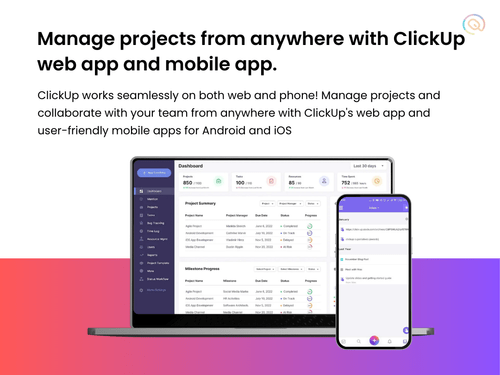
Is ClickUp available for mobile phones?

ClickUp offers mobile apps for both Android and iPhone platforms.

What is ClickUp used for?

ClickUp is a project management and productivity tool used for managing tasks, projects, and workflows across teams. It is usually used for project planning, task tracking, collaboration, resource management, and knowledge sharing.

Is ClickUp free?

Yes, ClickUp has a free plan that includes many of its core features.

Is ClickUp easy to use?

ClickUp software is designed to be user-friendly, with an intuitive interface that makes it easy for teams to get started.

How many employees can I add in a team?

ClickUp free plan users can add only five employees while Unlimited, Business, & Enterprise plan users can add unlimited employees.

Is ClickUp a SaaS software?

Yes, ClickUp is a SaaS (Software as a Service) platform, meaning it is hosted in the cloud and accessed via the Internet.

How much does Clickup costs?

Clickup pricing starts from $10 for unlimited plan and $19 for business plan.

Clickup Questions

Q:

How to set up a team workspace in ClickUp?

Shiva dwivedi Sep 26, 2025
A:

Here’s how you can set up a team workspace in ClickUp:

  • Create a Workspace
  • Structure Your Workspace
  • Invite Team Members
  • Customize Permissions & Views
  • Automate & Integrate
Imran husain Oct 2, 2025
Q:

How to integrate ClickUp with Google Drive?

Nishat Sep 17, 2025
A:

Integrating ClickUp with Google Drive allows you to attach, create, and manage files directly within ClickUp. Here’s how you can set it up:

Steps to Integrate ClickUp with Google Drive

  • Go to ClickUp Integrations – Navigate to ClickUp Settings > Integrations.
  • Select Google Drive – Click on Google Drive and choose 'Connect'.
  • Authorize Your Google Account – Sign in and grant ClickUp permission to access your Drive.
  • Attach Google Drive Files to Tasks – Open a task, click 'Attach', and select files from Google Drive.
  • Create Google Docs, Sheets, or Slides – Generate new Google files directly within ClickUp.
  • Use Connected Search – Search for Google Drive files inside ClickUp without leaving the platform.
Shraddha Sep 22, 2025
Q:

How to fix sync issues in ClickUp?

Ram Murti Saadh Aug 24, 2025
A:

If you're experiencing sync issues in ClickUp, here are some troubleshooting steps to resolve them:

  • Check Integration Settings – If you're using Google Calendar, Jira, or Salesforce sync, ensure the integration is properly configured in ClickUp settings.
  • Refresh & Clear Cache – If tasks or updates aren't syncing, try refreshing ClickUp or clearing the cache on the mobile app.
  • Verify Connection Stability – Ensure your internet connection is stable, as weak connectivity can delay sync updates.
  • Check for ClickUp Server Issues – Visit ClickUp’s status page to see if there are ongoing outages affecting sync.
  • Reconnect the Integration – If an integration isn't syncing, disconnect and reconnect it in ClickUp settings.
Vijayan S Sep 3, 2025
A:

Using ClickUp, you can use task and project templates to establish standardized workflows. Repetitive work can be automated via task templates, which are simple to import into new projects. Setting up complete workflows with tasks, lists, and spaces with pre-established statuses, assignees, and deadlines is made easy using project templates.

Arvind Shekar Guddad Oct 23, 2024
Q:

How to Manage Objectives and Key Results in ClickUp?

Aayushi Singla Oct 22, 2024
A:

To manage Objectives and Key Results (OKRs) in ClickUp, utilize the 'ClickUp Goals' functionality to make your objectives as goals, after which you must Include your primary outcomes as ‘Targets’ for every goal.

Sujith Oct 22, 2024
See All Clickup Questions

20,000+ Software Listed

Best Price Guranteed

Free Expert Consultation

2M+ Happy Customers

Terms and Condtions

close

Users with registered businesses can purchase goods from merchants on the platform to satisfy their business needs. Users are not permitted to utilize any products acquired through the platform for resale, advertising, business, or further distribution.

For each purchase made, users will receive a Tax Invoice (or 'GST invoice') that includes specific details such as:

  • the GSTIN of the user associated with their registered business, and

  • the specified Entity Name for their business.

It should be noted that not all products are eligible for GST Invoice. Only the products displayed by participating sellers with the 'GST-based Invoice Available' callout on the product description page would qualify.

Certain goods and services are not eligible to get a GST Invoice, including items with VAS, i.e., Value Added Services (e.g., Total Mobile Protection/Assured Buyback) and those involving an exchange offer at the time of purchase.

Users must ensure the accuracy of the GSTIN, and business entity name provided for the GST Invoice. Requests for corrections into GST Invoice would not be accommodated by Techjockey.com or any Seller, and any issues arising from user-provided information are the sole responsibility of users.

Techjockey.com is not liable for the GST Invoice or any associated input tax credit. To efficiently claim an input tax credit, users should select the registered place of business address as per the GST authority's data and follow the provisions of the GST Act and rules.

To claim an input tax credit, the delivery and billing addresses must match. Furthermore, input tax credits will not be granted if the delivery address and GSTIN on the invoice are from different states. In case of incorrect GST details provided during the order placement, the order will be canceled automatically.